
Normal Mode vs Stealth Mode: Which One Should You Use?
Normal mode is enough for Zoom and Teams calls with HR or a hiring manager. Use Stealth Mode for coding tests and exam platforms with anti-cheating tools. Plus tips for mouse pass-through and using your phone comfortably.
Last updated
The short answer
• Normal mode (called Standard Mode in the app): for regular interviews with HR or a hiring manager on Zoom, Teams or Google Meet. This covers most interviews.
• Stealth Mode: for technical interviews on a website, coding tests and exam platforms that have anti-cheating tools (software that watches your screen and tabs to catch outside help).
If you are not sure, start with normal mode. Switch to Stealth Mode only when the platform actively tries to detect cheating.
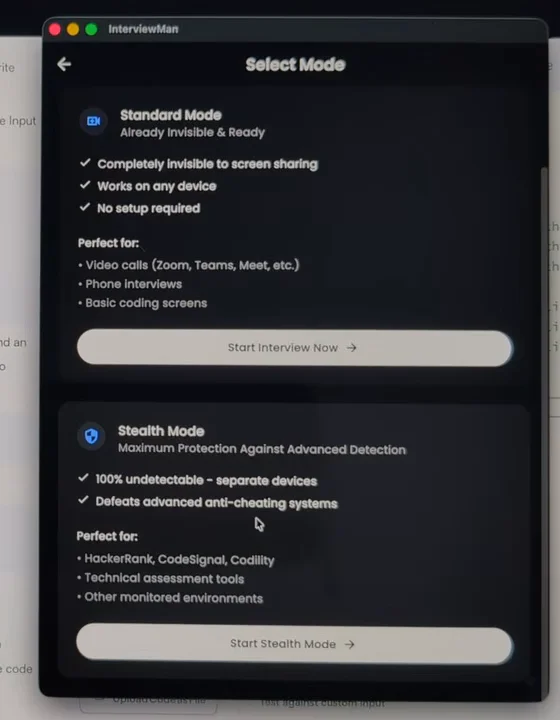
When you press Start, the app asks you to pick Standard Mode (normal mode) or Stealth Mode.
When normal mode is enough
Normal mode runs on one device. The app sits on your screen, but it does not show up when you share your screen.
• Video calls with HR, a recruiter or a hiring manager on Zoom, Teams or Google Meet.
• Phone interviews.
• Basic coding screens without special monitoring.
A laptop with a good built-in microphone is all you need. No phone, no pairing, no setup.
When to use Stealth Mode
Stealth Mode was built for exams and platforms that actively look for cheating, like HackerRank, CodeSignal, Codility and other online assessment tools (timed coding tests a company sends you).
In Stealth Mode the desktop app hides itself on your laptop and works quietly in the background. All answers show up on a second device: your phone, a tablet or another computer.
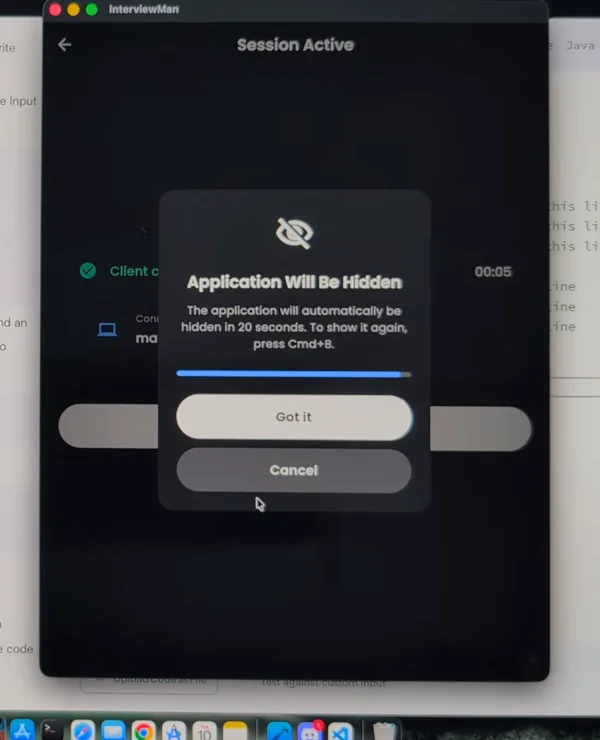
After you start Stealth Mode, the desktop app hides itself. Press Cmd+B (Ctrl+B on Windows) to show it again.
Setup takes a few minutes the first time, because you pair the laptop with your phone. Follow the How to Use Stealth Mode guide.
Tips for normal mode
Both modes stay hidden from screen sharing. In normal mode, the app is on the same screen as your interview, so two habits matter:
• Learn the shortcuts. Control the app from the keyboard so you never click around in it. For example, Cmd+B (Ctrl+B on Windows) hides or shows the window.
• Turn on mouse pass-through. Press Cmd+I on Mac or Ctrl+I on Windows. Your clicks now go straight through the app to the window behind it, so you never click inside the app by mistake.
See every shortcut on the Keyboard Shortcuts page, and read How InterviewMan Stays Hidden for more ways to look natural on camera.
Tips for Stealth Mode: avoid moving your arm
In Stealth Mode you read and tap on your phone, and reaching for it on camera can look odd. Some ways to fix it:
• Use a mouse with your phone. Connect a Bluetooth mouse to your phone and control it without lifting your arm.
• Raise the laptop. Put the laptop a bit higher and keep your arm and phone below the camera view.
• Use a second laptop. Run the InterviewMan web app on another computer instead of a phone.
• Use a bigger screen. A tablet or an iPad is easier to read than a phone.
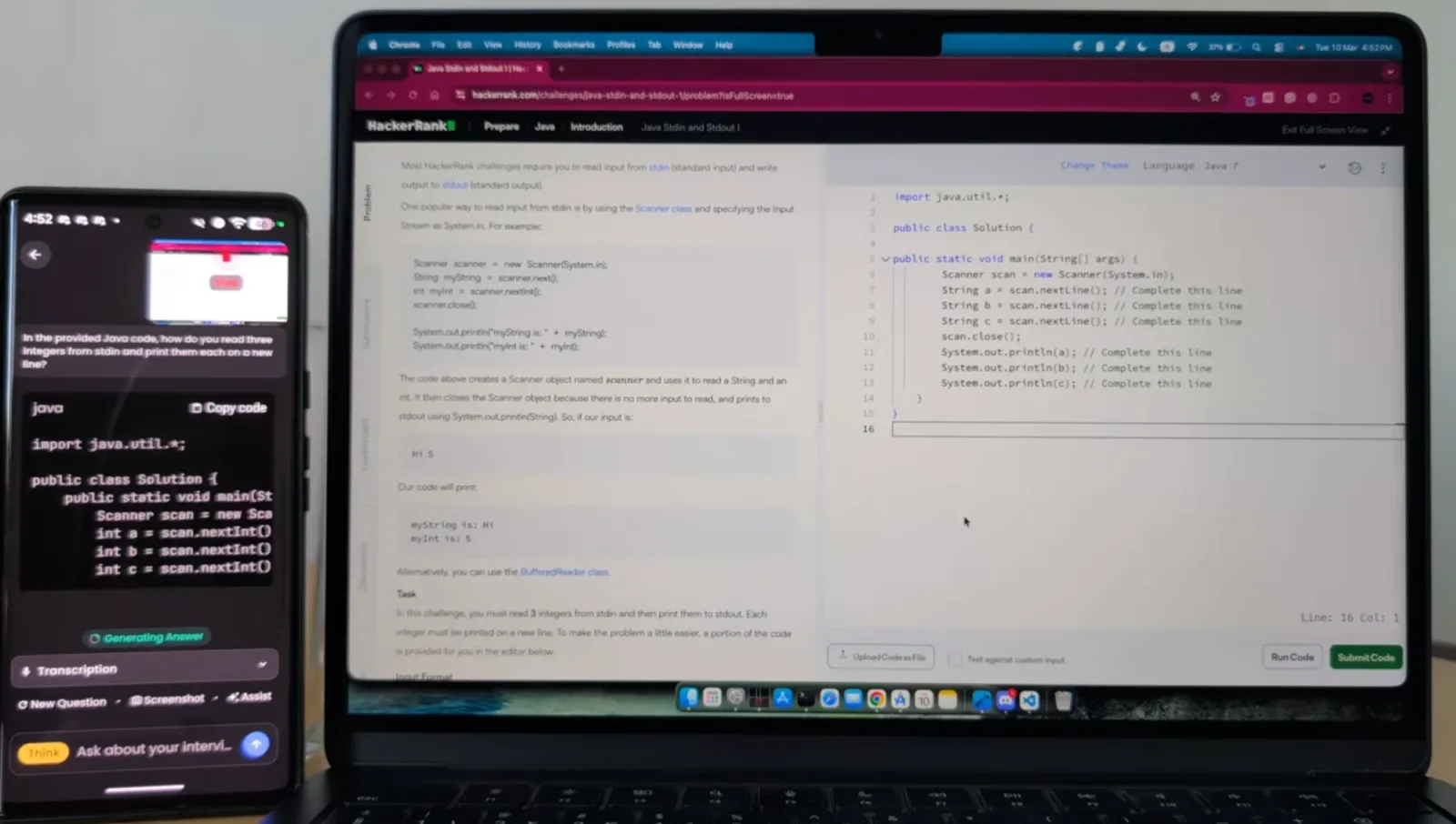
Stealth Mode: the answer appears on the phone, the laptop shows only the coding task.
Watch the demo
See Stealth Mode on a laptop and a phone in the Stealth Mode video on YouTube. Still not sure which mode fits your interview? Contact support.