
Change How InterviewMan Appears in Task Manager (Windows)
On Windows, give InterviewMan a custom name so it shows under that name in Task Manager. Set it while you install, or later from Settings, Change App Name.
Last updated
What you can do
On Windows, you can give InterviewMan a custom name. The name you choose is what shows in Task Manager for the app, and also on the Start Menu and Desktop shortcuts and in the Installed Apps list, instead of InterviewMan.
This is for the Windows version downloaded from our website. The App Store and phone apps cannot change their name.
One thing to keep in mind: this renames the app, it does not hide it. The app is still listed in Task Manager, under the name you picked.
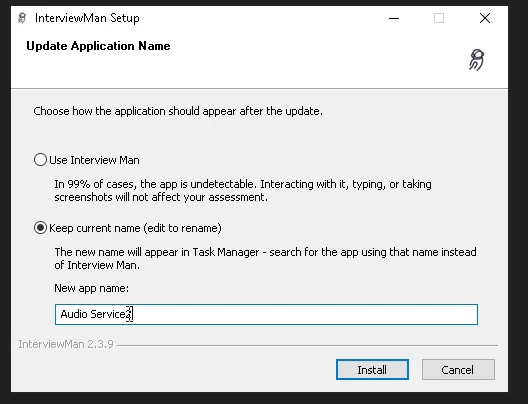
In the setup, choose a custom name and type it, for example "Audio Service".
Set the name while you install
When you run the setup, it asks how the app should appear after it is installed.
1. Choose the option to use a custom name.
2. Type the name you want in the New app name box, for example *Audio Service*.
3. Continue the setup as normal.
From then on, that is the name you see in Task Manager.
Change the name later
You can change the name any time from inside the app:
1. Open InterviewMan and go to Settings.
2. Tap Change App Name.
3. Confirm. The setup is downloaded again, and you run it and pick a new name.
You are signed out and your in-app settings are reset during this, but your account and plan are safe. Just sign in again afterwards.
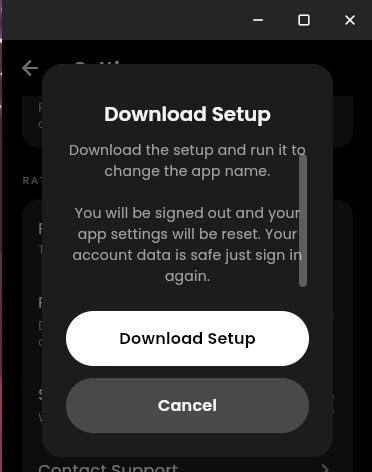
Settings, Change App Name re-runs the setup so you can pick a new name.
Names you cannot use
The setup blocks names that copy a real Windows or antivirus process (for example svchost or a Microsoft Defender name). Those names would make antivirus software flag the app, so they are not allowed.
Pick an ordinary, unremarkable name instead. *Audio Service* is the suggested one, but any normal name works.
Renamed is not the same as hidden
Changing the name only changes how the app is labelled. For the interview itself:
• In Standard Mode, the app is excluded from screen sharing and screen recording, so it does not appear on a shared screen.
• For coding tests with anti-cheating tools, use Stealth Mode: the computer hides the app and you read the answers on your phone. Read Standard Mode vs Stealth Mode to pick the right one.