
Message us on Facebook to see the terms and get 40% OFF the yearly plan

03h : 00m : 00sMessage us
Help CenterDocumentation

How to Use InterviewMan Stealth Mode

Step-by-step guide to using Stealth Mode during a monitored (screen-shared) technical interview.

Last updated

Video Tutorial

How to Use Stealth Mode (Monitored Interview)
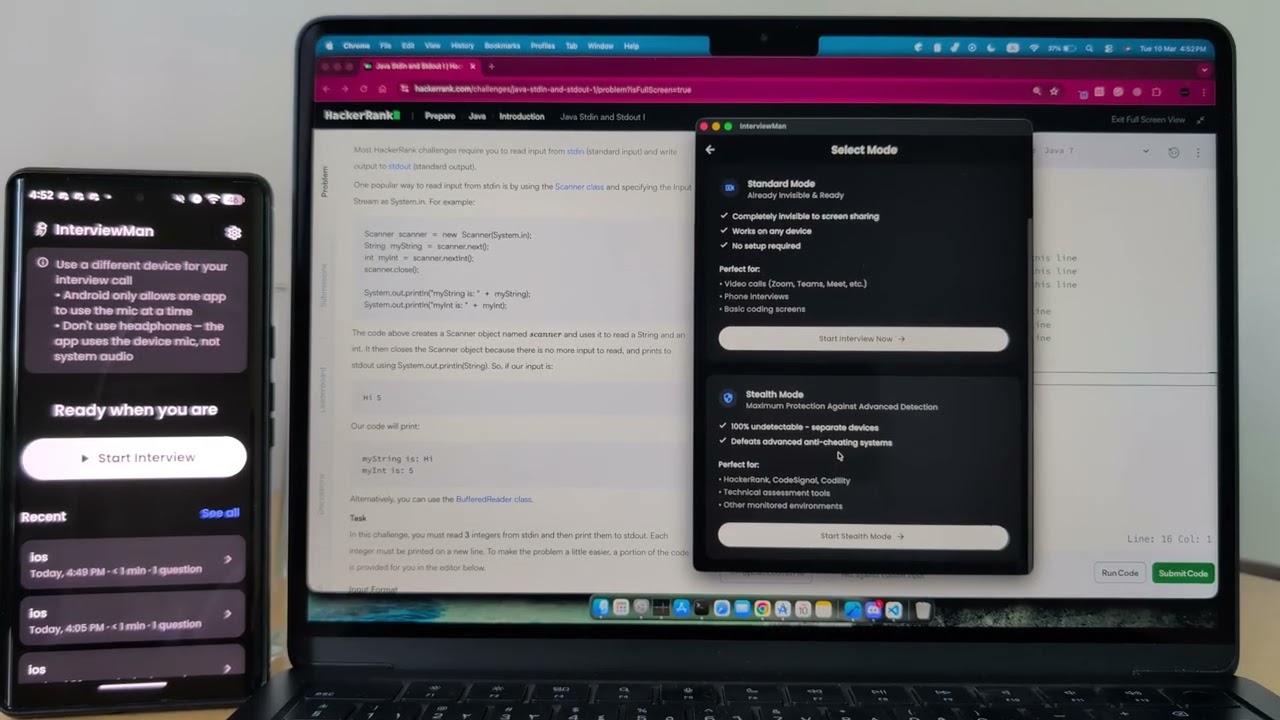
How to Use Stealth Mode (Monitored Interview)

Unlike normal mode (which advanced monitoring tools might detect), Stealth Mode runs completely separate from your screen, so interview software cannot detect it.

Requirements: You will need the desktop app (Windows or macOS) on your laptop, and either the web app or the mobile app on your phone.

Important: Before using Stealth Mode, you must first connect the desktop app with a mobile phone. Open the desktop app and pair it with your phone using either the mobile app or the web app. This initial connection is required. Stealth Mode will not work until the desktop app and your phone are linked. Once connected, you can proceed with the steps below.

Tip: Want a larger screen? You can also connect Stealth Mode between two desktop devices, use the desktop app on your interview laptop and the web app on a second computer. Alternatively, you can use a tablet or iPad instead of a phone for a bigger display.

Use Stealth Mode During a Monitored Interview

1
Connect your phone to the desktop app
Open the desktop app on your laptop and the mobile app (or web app) on your phone. Pair the two devices. This step is required before Stealth Mode can be used.
2
Start Stealth Mode on your laptop
Once connected, click Start on your laptop and choose Stealth Mode.
3
Hide the desktop app
Click Hide Application on the laptop. You will see only a small speaker icon in the corner, that is the app running quietly in the background.
4
Control everything from your phone
Your phone now shows the full InterviewMan interface. It listens and answers just like normal mode, but stays off your laptop screen.
5
Capture the interview screen when needed
Tap the Screenshot button on your phone to instantly capture your laptop's screen. The image is sent to your phone, analyzed by AI, and helpful answers appear on your phone.
6
End the session
When finished, tap End Session on your phone or click the speaker icon on your laptop to close everything.
7
Stay invisible, interview confidently
Stealth Mode keeps assistance completely invisible to monitoring tools so you can focus on your interview with total confidence.
GET STARTED

Ready to Ace Your Next Interview?

Join thousands of engineers who have landed their dream jobs with InterviewMan.

Start Free Trial