
How to Use InterviewMan with Headphones (Device Audio)
Turn on Device Audio so InterviewMan hears the interviewer straight from your computer, even with headphones, AirPods or a headset on. Setup for Mac, Windows and the web app, plus how to mute your own voice.
Last updated
What Device Audio does
Device Audio lets InterviewMan hear your computer's own sound. The interviewer's voice goes straight from Zoom, Google Meet or Teams into the app, not through the air.
• Wear headphones. Headphones, AirPods, earbuds or a headset all work. The app still hears the interviewer.
• Cleaner audio. No room noise, no echo, no speaker volume to fix. Noise-cancelling headphones are fine.
• One device is enough. The call and the app can run on the same computer.
It works in the Mac app (macOS 13 or newer), the Windows app, and the web app in Chrome or Edge on a computer. It does not work on phones or in Safari.
Not in Stealth Mode
Device Audio works only in normal mode (Standard Mode in the app). In Stealth Mode, your phone (or second device) listens to the interviewer through its own microphone. It cannot hear what plays in your headphones.
So in Stealth Mode, play the call on your laptop's speaker and keep the phone close to it. If you want to wear headphones, use normal mode.
Mac
1. Start an interview. On the Before we start screen, click Allow on the Screen Recording card. On Mac, this one permission covers both screenshots and Device Audio.
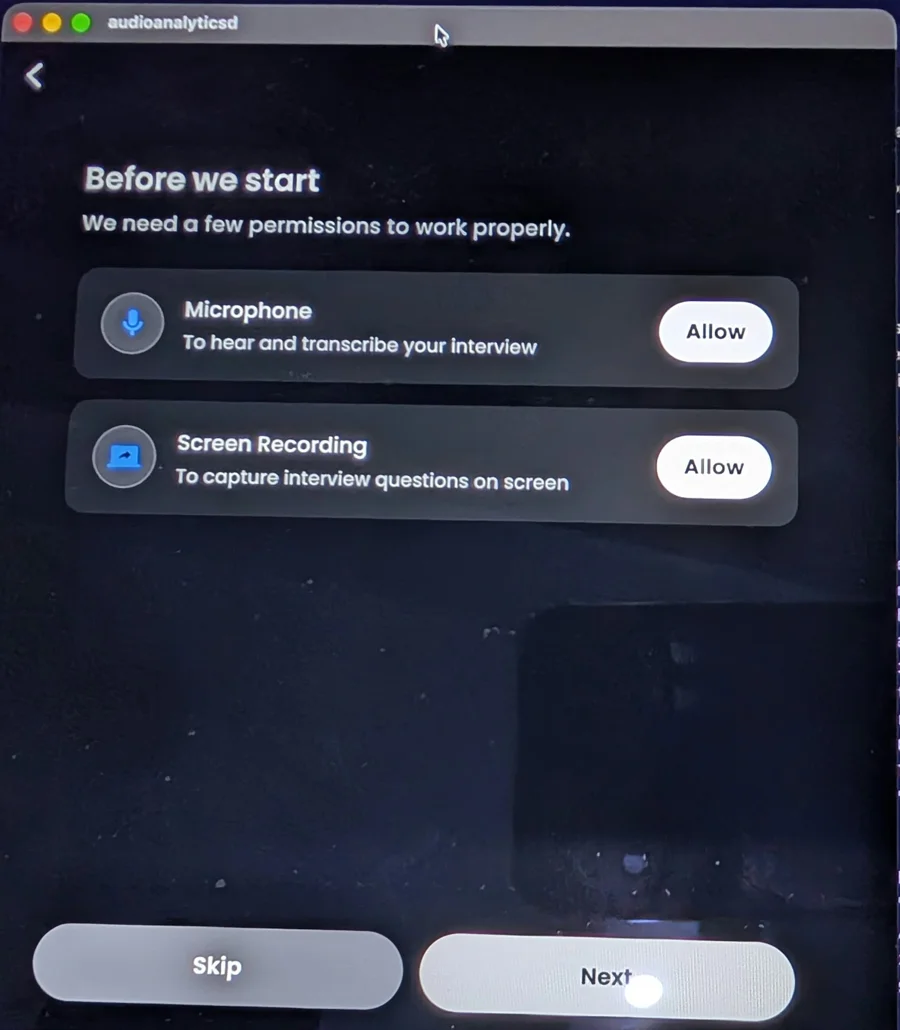
Click Allow on Screen Recording. On Mac it also turns on Device Audio.
2. macOS asks for permission. Open System Settings, go to Privacy & Security, then Screen & System Audio Recording, and turn on audioanalyticsd.app. This is the name InterviewMan uses on Mac.
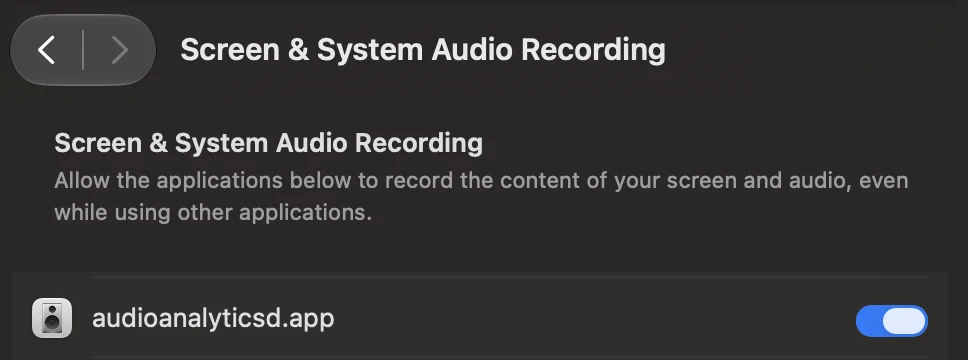
Turn on audioanalyticsd.app (InterviewMan) in Screen & System Audio Recording.
3. Quit and open InterviewMan again. macOS only applies this permission after a restart.
4. Start the interview. You can now put on your headphones.
If it does not start, check that your Mac runs macOS 13 or newer.
Windows
1. Open the InterviewMan desktop app and start an interview.
2. Click Allow on the Device Audio card.
3. Put on your headphones and start. The app hears your computer's sound directly.
Device Audio does not start on Windows?
If you see "Device Audio could not start", it is almost always your headphones' or speakers' own sound effects. Windows calls them audio enhancements. Some headsets turn them on by default, and on some of them they block Windows from sharing the device's sound with apps. Turning them off is safe: it only removes the device's extra effects, and you can turn them back on later.
1. Right-click the speaker icon in the taskbar and click Sound settings.
2. Scroll down and click More sound settings.
3. On the Playback tab, double-click your headphones or speakers.
4. Open the Advanced tab and untick Enable audio enhancements. Click OK.
5. Fully close InterviewMan and open it again.
Also check that your headphones or speakers are the default playback device, not a virtual cable. Right-click the speaker icon and pick them under Output.
This setting does not affect most computers. If Device Audio already works for you, leave it as it is.
Web app (Chrome or Edge)
In the browser, Device Audio works through screen sharing. Chrome or Edge shares your computer's sound with the app.
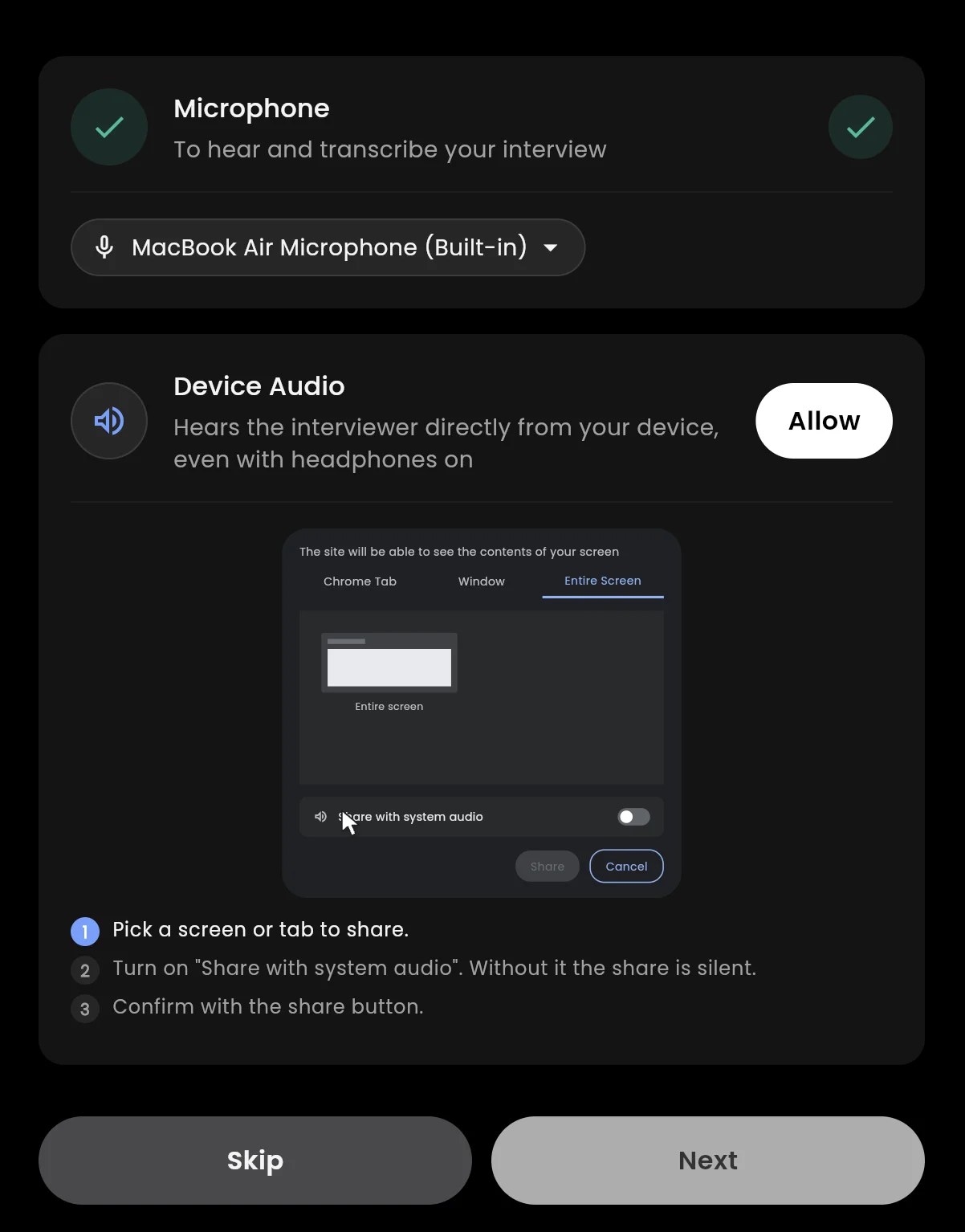
In the web app, click Allow on Device Audio, then share with system audio.
1. Click Allow on the Device Audio card.
2. In the share window, pick Entire Screen.
3. Turn on Share with system audio. Without it the share has no sound.
4. Click Share.
If you click Stop sharing in the browser bar, Device Audio stops too. The microphone keeps working. Turn Device Audio on again to reconnect.
Choose your microphone
On Mac, Windows and the web app, you can pick which microphone InterviewMan uses. For example your laptop's built-in mic, your headset mic, or an external mic.
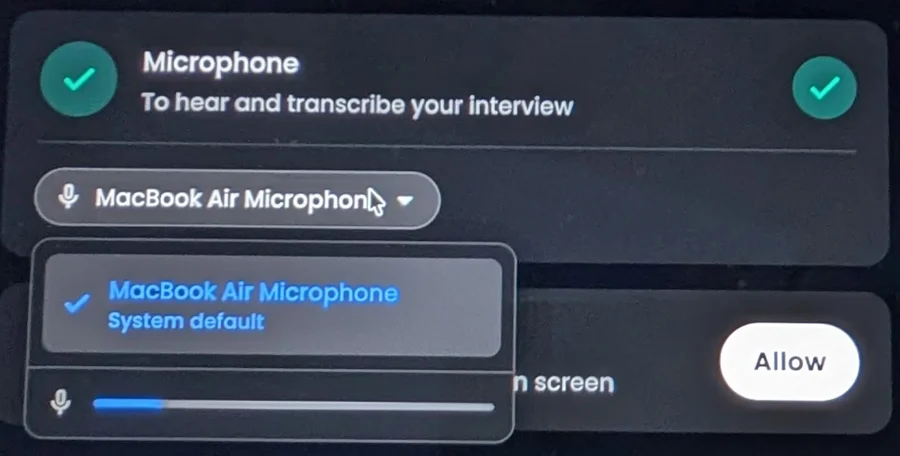
Click the microphone name to pick another one. The bar moves when the mic hears you.
1. Under the Microphone card, click the microphone name.
2. Pick the microphone you want from the list.
3. Speak. If the bar under the list moves, the app hears that microphone.
You can change it before the interview or during it, from Access.
Mute your own voice
With Device Audio on, you can turn your microphone off. Then the app hears only the interviewer.
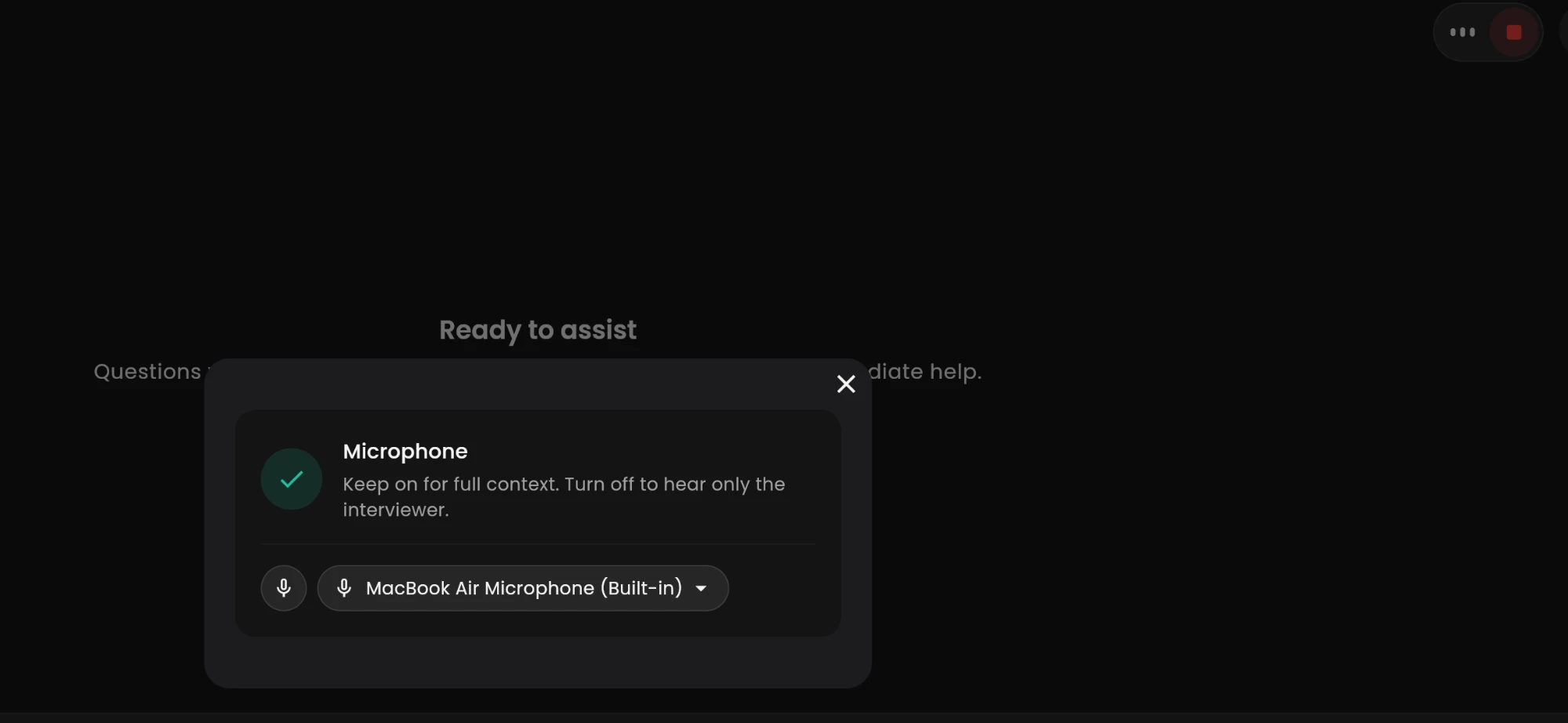
Open Access during the interview and click the microphone button to turn it off.
• Microphone off: the app hears only the interviewer. Your voice never mixes with theirs, so your own answers are not mistaken for new questions.
• Microphone on: the app hears both of you. This gives it the full conversation, for example when you ask the interviewer a clarifying question.
You can switch it any time during the interview, even while recording.
Test before the real interview
Put on your headphones and play a YouTube interview simulator video on your computer. Press Start in InterviewMan. If the question shows up and you get an answer, you are ready. Still not hearing the interviewer? See the audio setup guide or contact support.
Something not working? Do a clean reinstall
If the app acts strange or anything else is broken, the fastest fix is a clean reinstall. It deletes the app and all its cache and settings files, then you install a fresh copy. Your account and subscription stay safe. On Windows, if only Device Audio does not start, try the audio enhancements fix above first; a reinstall does not change that setting.
• Mac: follow Clean reinstall on Mac.
• Windows: follow Clean reinstall on Windows.
On Mac, after reinstalling, turn on audioanalyticsd.app in Screen & System Audio Recording again and restart the app.