

The screenshot below is the whole answer in one frame. On the right, a HackerRank task with the InterviewMan overlay open over it, Java solution and explanation visible. On the left, the small "You, presenting" preview that Google Meet shows the person sharing. It shows the same HackerRank page, and the overlay is not in it. The Chrome bar at the bottom says meet.google.com is sharing the screen. That is what the interviewer on the other end receives.
Google Meet does not look for AI tools. It is a web page that shows the other participants what you choose to share and records what was presented. Whether an interview assistant ends up in that share depends on one thing: whether the operating system leaves the assistant's window out of the capture. On a Mac running macOS 13 or newer and on Windows 11, InterviewMan's window is left out. On macOS 12 Monterey there is an exception, and this guide says exactly what it is.
We build InterviewMan, so read the comparison with that in mind. Every claim about Google Meet, Chrome and other tools links to its source.
Last updated: November 15, 2026.
Key takeaways:
- Google Meet sees three things: what you present (a tab, a window or the entire screen), your camera and your microphone. It has no feature that lists the apps running on your computer, and Google publishes no statement about detecting AI tools in Meet.
- A Meet recording saves the active speaker and whatever was presented. Google says other windows and notifications are not saved.
- The entire-screen share is the only exposure. An overlay survives it only when the operating system's capture path honours the "leave this window out" flag. On macOS 13+ and Windows 11, it does. On macOS 12 with Chrome, it does not, for any tool.
- InterviewMan's overlay is out of the share on macOS 13+ and Windows 11, its shortcuts never reach the Meet tab, and Stealth Mode moves the answers to your phone so nothing is on the shared computer at all.
- It is $12/mo on the yearly plan with a 20-minute free trial and no card. Cluely charges $149.99/mo for its hidden tier, and Interview Coder is $299/mo with no refunds.
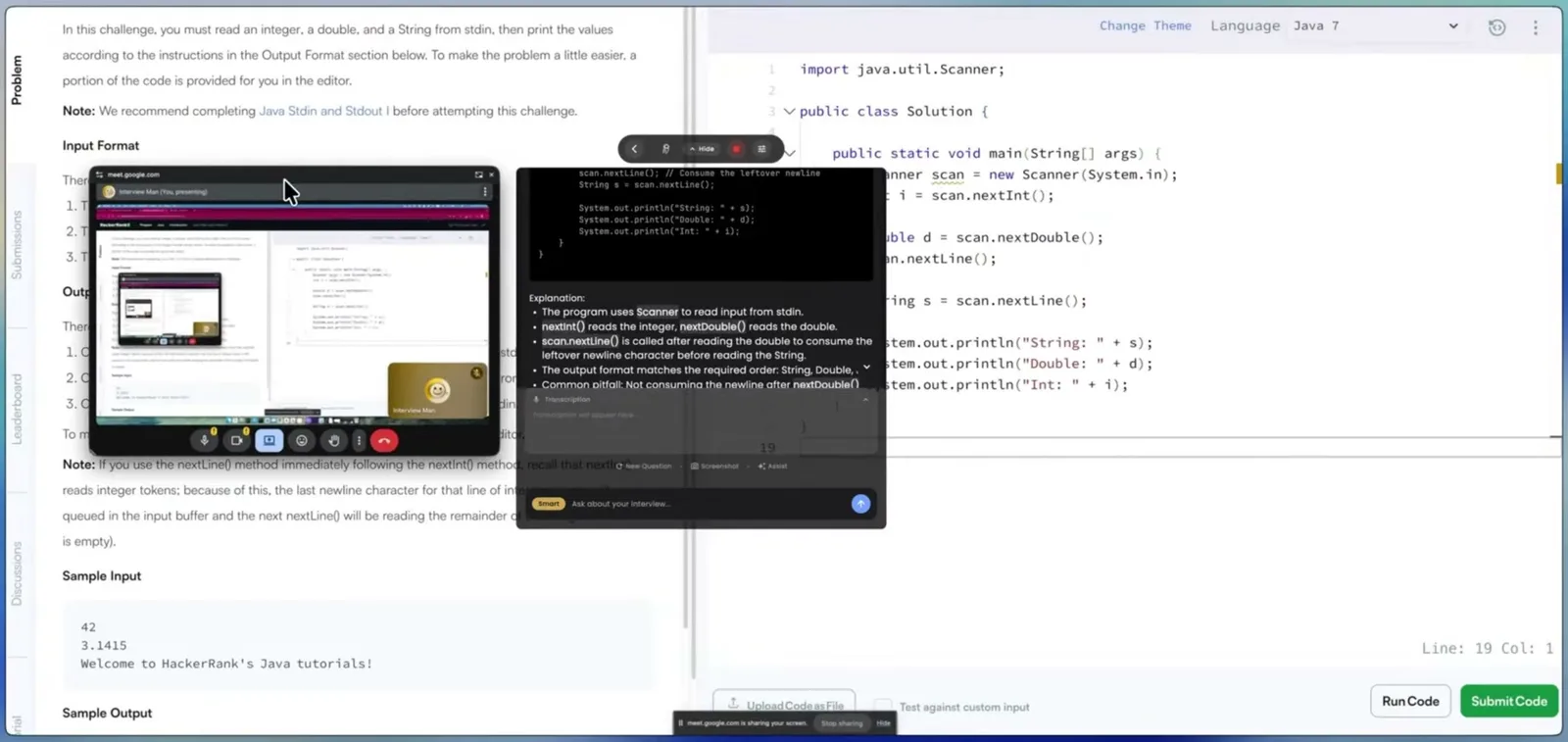
Google Meet, entire-screen share from Chrome. The overlay with the Java answer is open on the desktop; the Meet preview on the left shows the HackerRank page without it.
Invisible on Google Meet
Out of the entire-screen share on macOS 13+ and Windows 11, shortcuts the Meet tab never sees, and Stealth Mode for coding screens. $12/mo on the yearly plan, 20-minute free trial, no card.
Download InterviewManWhat Google Meet can see, and what it cannot
Meet runs inside a browser tab. Everything the interviewer gets comes through that tab, and the tab has three inputs: the camera, the microphone and the share.
- The share. When you click Present, Chrome opens its own picker with three options: a Chrome tab, a window, or your entire screen. A tab share shows that tab and nothing else. A window share shows that one window. An entire-screen share shows everything drawn on that display, including notifications and any app on top of the browser.
- The recording. When the organizer records, Google says the recording includes the active speaker and anything presented. Other windows and notifications are not saved, because the recorder only receives what the share stream carries.
- No app list. Meet documents no feature that tells a participant which applications are running on your computer, which windows are open, or what you pressed on the keyboard. A web page cannot read your process list, and Meet is a web page.
- Bot detection is about bots. Meet, like Teams and Zoom, has settings to keep uninvited meeting bots out of a call. That targets a separate participant that joins the meeting, usually a note-taker. It has nothing to do with an app running on your own machine. InterviewMan never joins the meeting; it listens through your own microphone or system audio.
So the only moment Meet can expose an interview assistant is an entire-screen share, and only if the operating system paints the assistant's window into the shared stream. That is a question about Chrome and the operating system, not about Meet.
Google's own hiring moves say the same thing from the other side. Reporting says Google reinstated in-person interviews for some engineering roles to counter AI help, and that from the second half of 2026 it will let candidates use an approved AI assistant, Gemini, in one coding round (Fortune via Yahoo Finance). A company that could detect AI tools through Meet would not need either change.
How Chrome captures your screen, in plain words
Every "invisible" tool relies on the same idea. The operating system lets an app mark a window as "do not include this in screen capture". On a Mac that mark is the window's sharing type set to none, an AppKit property Apple documents for exactly this purpose (Apple developer docs). On Windows it is a flag passed to SetWindowDisplayAffinity called WDA_EXCLUDEFROMCAPTURE, which tells Windows to leave the window out of screenshots, recordings and shares.
The catch is that the mark only works if the capture path checks it. Chrome does not read your screen pixel by pixel; it asks the operating system for a capture stream, and different operating system versions hand it different streams.
- macOS 13 and newer. Chrome captures the screen through ScreenCaptureKit, Apple's current capture system. ScreenCaptureKit respects the sharing-type mark, so a window set to none is simply absent from the stream. This is why the share preview above shows HackerRank with no overlay.
- macOS 12 Monterey. Chrome still uses an older full-display capture path on this version, and that path ignores the mark. Chromium's own tracker has an issue about recording windows that set sharing type to none, and it was closed as "won't fix" (Chromium issue 40719882). We tested this ourselves in July 2026 on macOS 12.6 with 21 different window configurations. Every one of them showed the overlay in a Chrome entire-screen share. No tool can hide an overlay from Chrome on macOS 12; the exposure is in the capture path, not in the app.
- Windows 11. Chrome captures through Windows Graphics Capture or Desktop Duplication, and both honour WDA_EXCLUDEFROMCAPTURE on current builds. We verified the share on Windows 11 21H2 and 24H2 in July 2026.
The practical rule: on a Mac, check your macOS version before the interview. On 13 or newer, the overlay is out of a Meet share. On 12, use Stealth Mode or present a window or a tab instead of the entire screen.
How InterviewMan stays out of a Meet share
InterviewMan is a native app for Mac and Windows with iPhone, Android and web apps that pair with it. Standard Mode runs on the interview computer. Stealth Mode runs on the computer but shows the answers on your phone.
Standard Mode on a Mac
The window's sharing type is set to none, so ScreenCaptureKit on macOS 13+ leaves it out of a Meet share and out of screenshots. The app is a background-only app, which means no Dock icon and no entry when you press Cmd+Tab. The window is a non-activating panel: clicking it never makes InterviewMan the active app, so the Meet tab keeps keyboard focus and never fires a focus-lost event. On the direct-download build, the process runs under a different name in Activity Monitor.
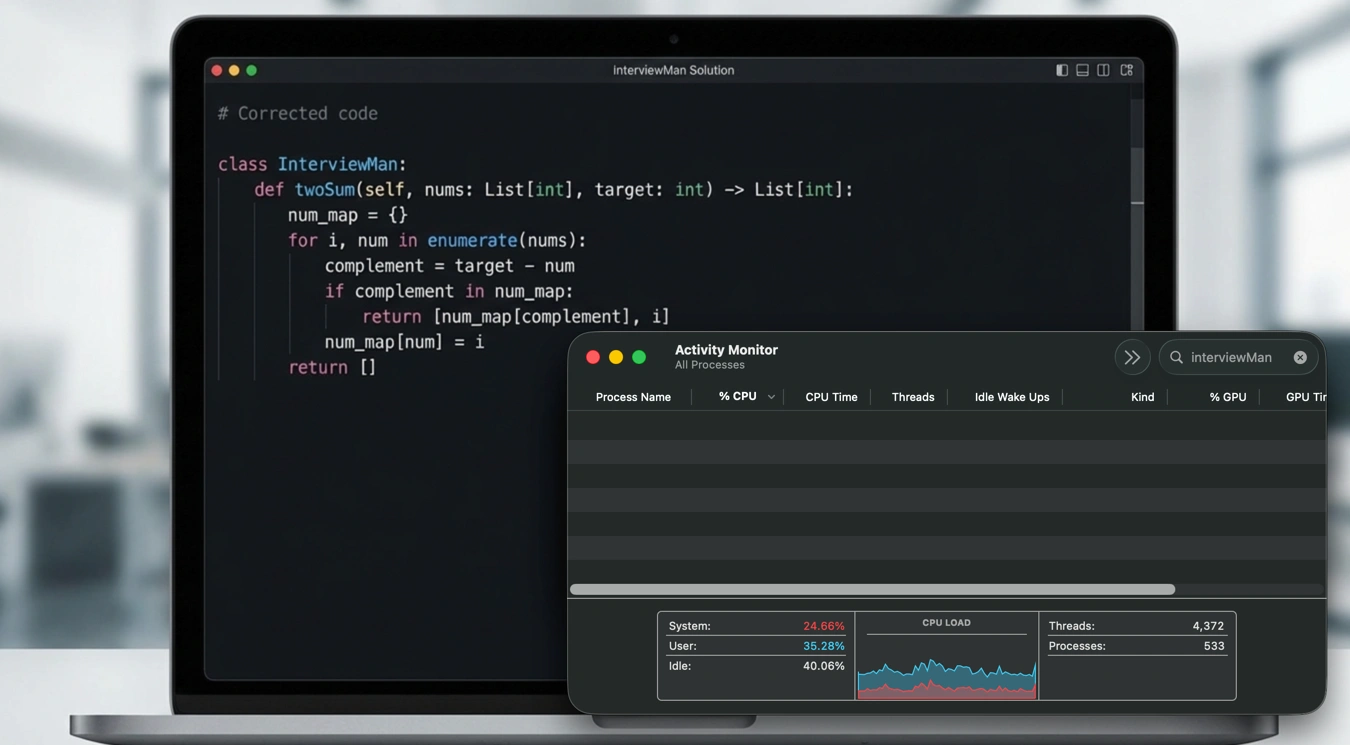
Activity Monitor on the Mac direct-download build: a search for InterviewMan finds no process, because it runs under a different name.
Standard Mode on Windows
Windows gets three layers, because Windows builds differ in which capture path they use. The window is marked with WDA_EXCLUDEFROMCAPTURE, which covers Windows Graphics Capture and Desktop Duplication. It is also marked with SetWindowCompositionAttribute WCA_EXCLUDED_FROM_DDA, a second flag that covers the Desktop Duplication path on builds where the first call is refused. And Chromium's own content protection is applied on top.
A Chrome entire-screen share on Windows 11 does not include the window; we checked on 21H2 and 24H2. The window is non-focusable, it is hidden from the taskbar, and you can choose a custom app name during install so Task Manager shows that name instead of InterviewMan.
Shortcuts that never reach the Meet tab
This is the part most tools get wrong. If an overlay's hotkey is an ordinary key press, the Meet tab receives it like any other key, and a page can log it. InterviewMan registers its shortcuts with the operating system as global hotkeys (RegisterHotKey on Windows, system hotkeys on macOS). The system delivers the key press to InterviewMan and swallows it.
The browser never sees it. You can check this yourself on the W3C Keyboard Event Viewer: click into the page, press Cmd+B (Ctrl+B) to hide the window, Cmd+H (Ctrl+H) to screenshot, Cmd+Enter (Ctrl+Enter) to generate. No rows appear.
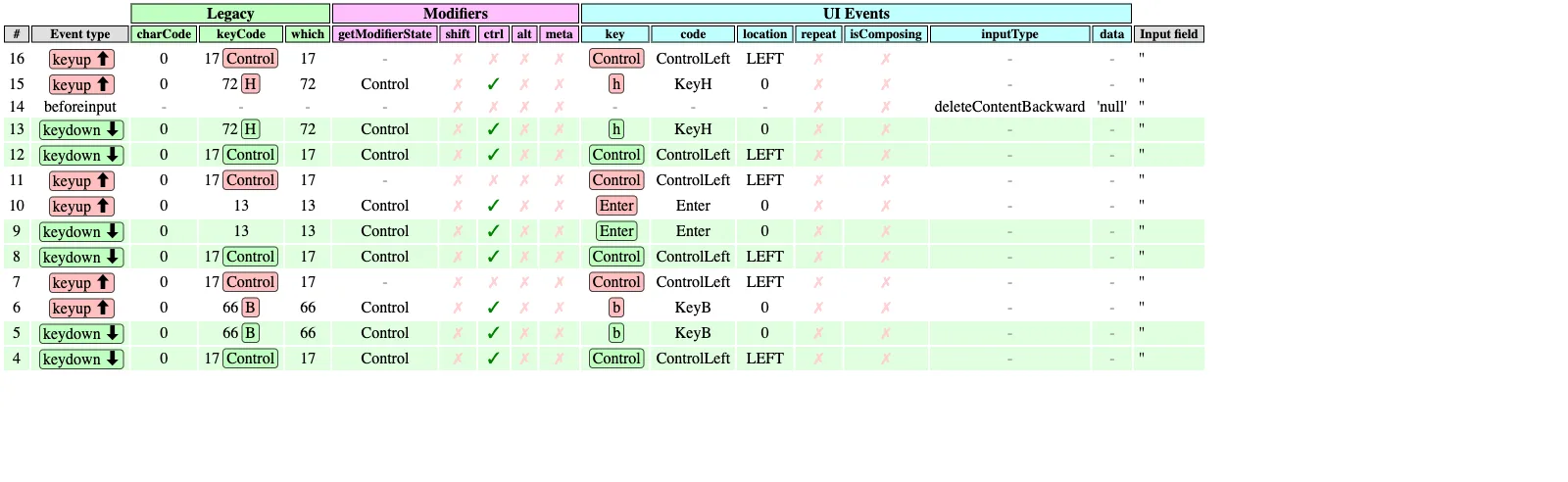
What a leaked shortcut looks like: the viewer logging Ctrl+B, Ctrl+Enter and Ctrl+H as normal browser key events. With InterviewMan running, these rows do not appear, because the operating system delivers the hotkey to the app and the browser never receives it.
The full list: Cmd+B / Ctrl+B hide or show, Cmd+H / Ctrl+H screenshot, Cmd+Enter / Ctrl+Enter generate, Cmd+I / Ctrl+I mouse pass-through so clicks go through the overlay to the page beneath, Cmd+L / Ctrl+L start or stop the microphone, Cmd+G / Ctrl+G reset the context, and Cmd plus the arrow keys to move the window. Transparency is adjustable, so the overlay can sit over the Meet video at a level you can read without it blocking your view. The keyboard shortcuts help page has the list, and the undetectability page explains each counter-measure.
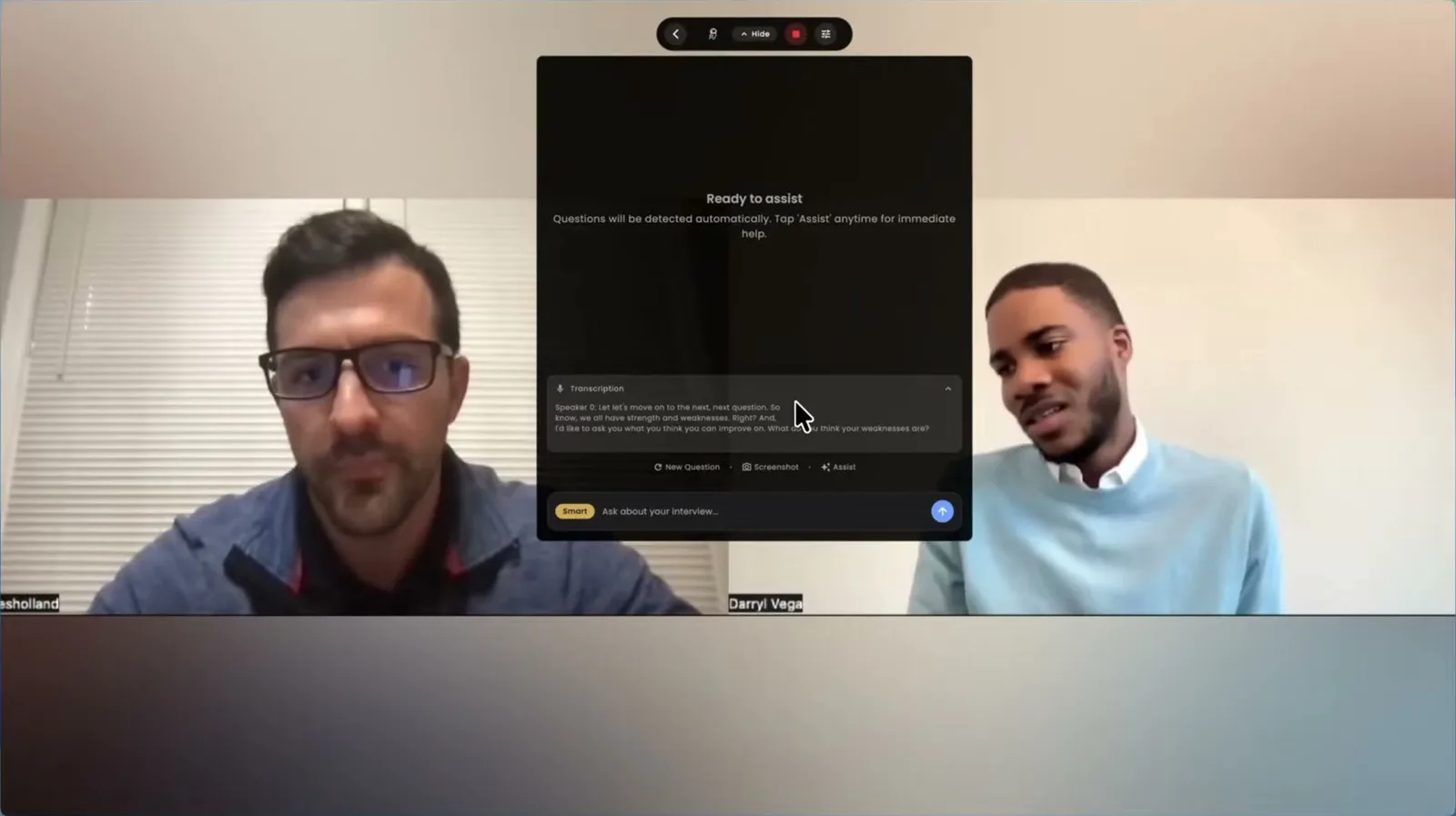
Standard Mode over a video call: the overlay sits on top of the call window, the transcription shows the interviewer's question as it is asked, and the share never includes the overlay.
Invisible on Google Meet
Out of the entire-screen share on macOS 13+ and Windows 11, shortcuts the Meet tab never sees, and Stealth Mode for coding screens. $12/mo on the yearly plan, 20-minute free trial, no card.
Download InterviewManStealth Mode: nothing on the shared computer
For a coding screen or any round where you would rather have nothing on the interview machine, Stealth Mode moves the answers to a second device. Pair the desktop app with the phone app or the web app once; the first pairing takes a few minutes, so do it the day before. On the day, click Start, choose Stealth Mode, and the laptop app hides itself: no window, no Dock or taskbar entry, and the window is removed from the operating system's window list.
Tap Screenshot on the phone and the laptop captures the task and sends it over. Screenshots wait in a tray until you press Assist, so a long task can be captured in parts. Cmd+B (Ctrl+B) brings the window back after the call. The steps are in the Stealth Mode help article, and Normal Mode vs Stealth Mode says which one fits which interview.
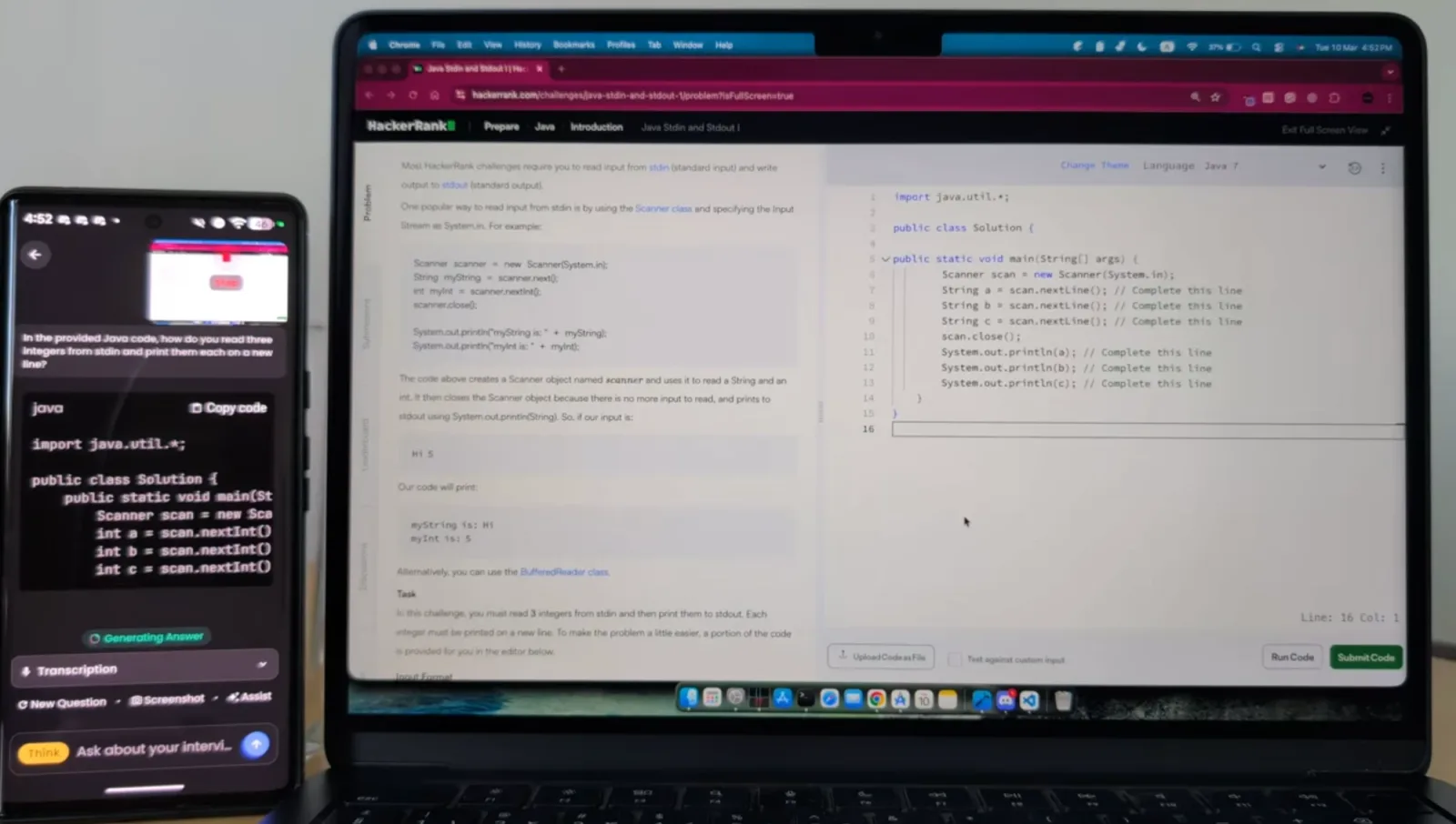
Stealth Mode on a coding task: the laptop shows only the test, the phone shows the answer.
How the tools compare on a Meet entire-screen share
| Tool | Hidden from an entire-screen share | OS limits stated | Stealth included or paid | Phone mode | Price | Refunds |
|---|---|---|---|---|---|---|
| InterviewMan | Yes on macOS 13+ and Windows 11, verified; on macOS 12 use Stealth Mode or a window share | Yes, this page | Included on every plan | Yes, Stealth Mode on iPhone and Android | $12/mo yearly ($144/yr) or $30/mo, 20-minute free trial, no card | Standard terms |
| Interview Coder | Claimed; its support page admits it can show in Google Meet on Windows 10 | Partly | Included | No phone app | $299/mo or $799 once | "No-refund policy for all purchases" |
| Cluely | Only on the paid Undetectability tier | Not published | Paid add-on | No | $149.99/mo monthly, $79.99/mo yearly for the hidden tier | Detection by screen-sharing software is not refundable, per its terms |
| Final Round AI | Claimed, on by default | Not published | Included | Phone screens "via another device" | $25/mo yearly or $150/mo, no free live sessions | Not published |
| LinkJob AI | Claimed, mechanism not named | Not published | Included | No | $29.99/mo yearly | Monthly plan non-refundable |
Prices and vendor claims checked November 6, 2026 on each vendor's site; check before paying. Parakeet AI is not in the table, but its public feedback board carries a user report of the overlay showing up in a Microsoft Teams entire-screen share on macOS, which is the same capture-path problem on a different platform.
Two things stand out. Interview Coder is the only vendor here that admits an exposure, and it blames Windows 10 rather than naming the capture path. Cluely sells the hidden window as a separate tier and then excludes detection from refunds. Final Round AI turns exclusion on by default but says nothing about operating system versions, which is where the real exposure lives.
Step by step: a Google Meet interview with InterviewMan
- Check your macOS version the day before. Apple menu, About This Mac. On macOS 13 or newer, Standard Mode is out of a Meet share. On macOS 12, plan on Stealth Mode or share a window instead of the entire screen. Windows 11: Standard Mode is fine.
- Turn off studio quality in Meet. Meet's studio sound setting can take the microphone in a way that blocks other apps. A Discord user put it best on May 31, 2026: "Amazing product, worked out of the box. Just a word of caution to people using it with Google meet, remember to disable studio quality option inside google meet settings, else InterviewMan wont be able to use the mic."
- Decide how you will hear the interviewer. Speakers: nothing to set up. Headphones on the laptop: turn on Device Audio (on by default in the Windows app; a switch in the Mac app on macOS 13+ and in the web app in Chrome or Edge with system audio shared). The headphones guide covers each case. If you run the app on your phone instead, take the call on the laptop on speaker and keep the phone next to it with no headphones.
- Start a session in Standard Mode and set transparency. Park the overlay just under your camera with Cmd plus the arrow keys, so your eyes stay where the interviewer expects them.
- Turn on mouse pass-through. Cmd+I (Ctrl+I) sends every click through the overlay to the Meet window, so a stray click never lands on the app. Use the shortcuts for screenshot and generate while it is on.
- If a coding screen is coming, switch to Stealth Mode. Click Start, choose Stealth Mode, connect the phone, and the laptop app hides. The interviewer can ask for an entire-screen share and there is nothing to find.
- Answer in your own words. The overlay streams the answer as the question ends. Read the first bullet, look up, and say it like you would in a normal conversation. Nobody is caught by a hidden window; people are caught by reading.
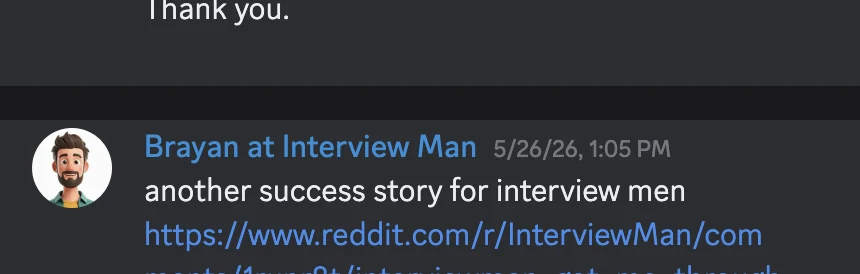
The Google Meet tip as posted in the InterviewMan Discord on May 31, 2026.
What people report
The reviews page collects every store rating and the Discord reports we were allowed to quote. InterviewMan is rated 4.9 on both the App Store and Google Play, and across its users it has zero confirmed detections. The reports that matter for a live video round:
- A Discord user, August 21, 2026: "Used interview on hackerrank with the built in video with three people watching me. Completely undetected and cleared the interview."
- A Discord user who was asked whether Stealth Mode was needed for two long rounds, July 2026: "no Sir, didn't need it. Ran it on standard mode for 4 hours straight."
- The Google Meet audio tip above, from a user who otherwise reported it "worked out of the box".
Those are reports, not a guarantee. Test on a private Meet call with a friend first: the same Mac or Windows build you will use, an entire-screen share, and the friend watching the share while you press the shortcuts. Normal Mode vs Stealth Mode has the full decision guide.
What no tool can fix
- macOS 12 with Chrome. The old capture path ignores every exclusion flag. Stealth Mode, a window share or a tab share are the only answers on that version.
- A phone in frame. Stealth Mode keeps the answers off the shared screen, but the camera still sees your desk. Put the phone on a stand just under the webcam, or use a tablet or second laptop behind the first.
- Eyes that leave the camera. Meet has no gaze tracking, but the interviewer has eyes. Keep the overlay near the camera and keep the answer short.
- Reading. An answer read word for word sounds read. Use bullet points, say each one in your own words, and pause before you start.
- A follow-up you cannot handle. The interviewer will ask why. Read the explanation, not only the answer.
Google Meet shows what you share and records what was presented. On macOS 13+ and Windows 11, InterviewMan is not in that share, its shortcuts never touch the Meet tab, and Stealth Mode leaves nothing on the shared computer. The rest is you.
Frequently asked questions
Can Google Meet see my screen without me sharing it?
No. Meet receives only what you present through Chrome's picker, plus your camera and microphone. Until you click Present and choose a tab, a window or the entire screen, the other participants see your camera feed and nothing else. Meet documents no feature that shows which apps are running on your computer.
Does a Google Meet recording include other windows?
No, unless they were part of the share. Google says a Meet recording includes the active speaker and anything presented, and that other windows and notifications are not saved. A window that is excluded from the share stream, like InterviewMan's on macOS 13+ and Windows 11, is not in the recording either.
Does Google Meet detect AI tools on a Mac?
Google publishes no statement about detecting AI tools in Meet, and Meet has no app-detection feature. The only exposure is an entire-screen share, and on macOS 13 or newer Chrome captures through ScreenCaptureKit, which leaves InterviewMan's window out. On macOS 12 Monterey, Chrome's older capture path ignores the exclusion flag for every tool, so use Stealth Mode or share a window or tab on that version.
Is InterviewMan visible if I share a tab or a window?
No. A tab share shows only that Chrome tab and a window share shows only that window, so an overlay that is a separate app is never part of either. The entire-screen share is the only case where exclusion matters, and InterviewMan is excluded there on macOS 13+ and Windows 11.
Does Google Meet flag a second device?
Meet has no feature that detects a second device. What can give it away is the camera: an interviewer can see a phone in your hand or your eyes dropping to the desk. In Stealth Mode, put the phone or tablet on a stand just under the webcam so your eyes stay near the lens, and never pick it up on camera.
Why does InterviewMan not hear the interviewer on Google Meet?
Usually because Meet's studio quality sound option has taken the microphone. Turn that option off in Meet's audio settings, then restart the InterviewMan session. If you wear headphones on the laptop, turn on Device Audio so the app hears the call directly; the hear the interviewer guide walks through both cases.
Download: InterviewMan for Mac, Windows, iPhone, Android and web ($12/mo on the annual plan or $30/mo, with a one-time 20-minute free trial and no card)
Invisible on Google Meet
Out of the entire-screen share on macOS 13+ and Windows 11, shortcuts the Meet tab never sees, and Stealth Mode for coding screens. $12/mo on the yearly plan, 20-minute free trial, no card.
