

The question we get most from new InterviewMan users is not about prompts or languages. It is this: "Should I use normal mode or Stealth Mode?" People assume the stealthier option is always safer, set up two devices for a friendly chat with a recruiter, and then spend the call staring at their phone.
Most of the time you do not need it. This guide explains what each mode does, which one fits your interview, and the small habits that make each mode work well.
Last updated: October 15, 2026.
Key takeaways:
- Normal mode (called Standard Mode in the app) is enough for regular interviews with HR or a hiring manager on Zoom, Teams or Google Meet.
- Stealth Mode is for technical interviews on a website, coding tests and exam platforms with anti-cheating tools, like HackerRank, CodeSignal and Codility.
- Both modes stay hidden from screen sharing. In normal mode, learn the shortcuts and turn on mouse pass-through with Cmd+I (Ctrl+I on Windows).
- In Stealth Mode, avoid reaching for your phone on camera: use a Bluetooth mouse, raise the laptop, or use a tablet or a second laptop.
- The short version lives on our help page: Normal Mode or Stealth Mode?.
What the two modes are
When you press Start in the InterviewMan desktop app, it asks you to pick a mode.
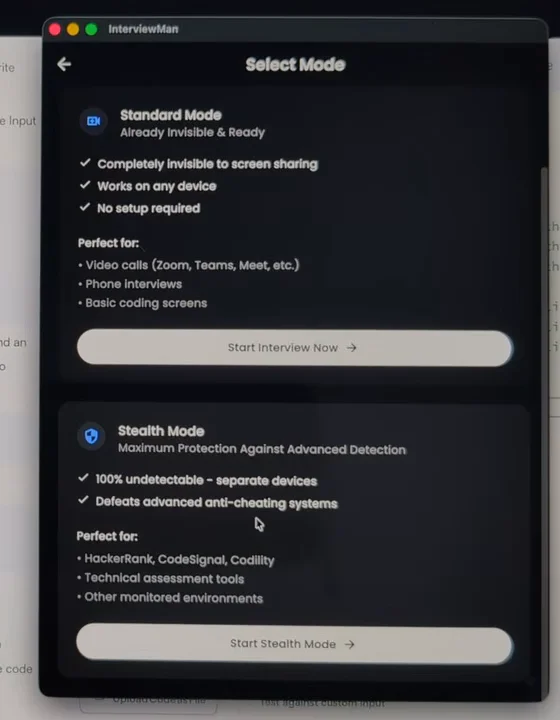
Normal mode (Standard Mode)
- Runs on one device: the same laptop you use for the call.
- The app sits on your screen, but it does not show up when you share your screen or take a screenshot.
- No setup. Press Start and go.
- Built for video calls on Zoom, Teams or Google Meet, phone interviews and basic coding screens.
Stealth Mode
- Uses two devices. The desktop app hides itself on your laptop, and the answers appear on your phone, a tablet or a second computer.
- Nothing from InterviewMan is on the laptop screen at all.
- Built for platforms that actively try to detect cheating: HackerRank, CodeSignal, Codility, online assessments (timed coding tests a company sends you) and other monitored tests.
Use normal mode for HR and hiring manager interviews
For a regular interview with HR, a recruiter or a hiring manager on Teams or Zoom, normal mode is the way to go. These calls are about your experience, your motivation and how you work with people. Nobody is running software that inspects your browser tabs.
Pick the right mode
Normal mode for Zoom and Teams calls, Stealth Mode for coding tests. InterviewMan gives you both on Mac and Windows.
Download InterviewManNormal mode is the better choice here because:
- Your eyes stay on the screen. The answer appears right next to the interviewer's face, so you keep natural eye contact.
- One device is enough. A laptop with a good built-in microphone is all you need.
- Nothing to pair. No phone setup, no second app, nothing to go wrong five minutes before the call.
If your laptop microphone is weak, or you want to wear headphones, turn on Device Audio so the app hears the call directly. See how to use an AI interview assistant with headphones.
Use Stealth Mode for coding tests and exam platforms
Stealth Mode was designed mainly for exams and platforms that actively detect cheating. Some coding platforms check which window is active, watch for apps on top of the browser, or record your screen during the whole test. On those, you want nothing from InterviewMan on the laptop at all.
Here is what happens after you start Stealth Mode:
-
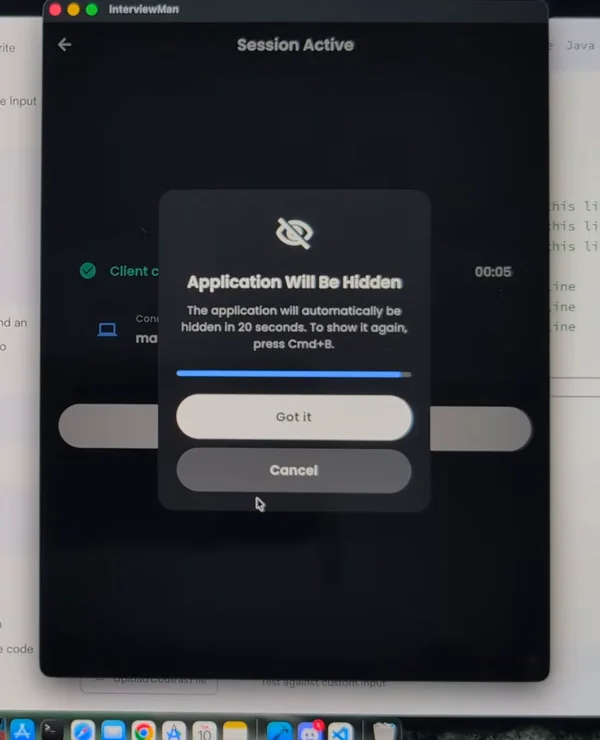
The desktop app shows a short message and hides itself after 20 seconds. To bring it back, press Cmd+B on Mac or Ctrl+B on Windows.
-
Your phone shows the full InterviewMan screen. It listens to the interviewer and answers, just like normal mode.
-
Tap Screenshot on your phone to capture the laptop's screen. The AI reads the coding task and the answer appears on your phone.
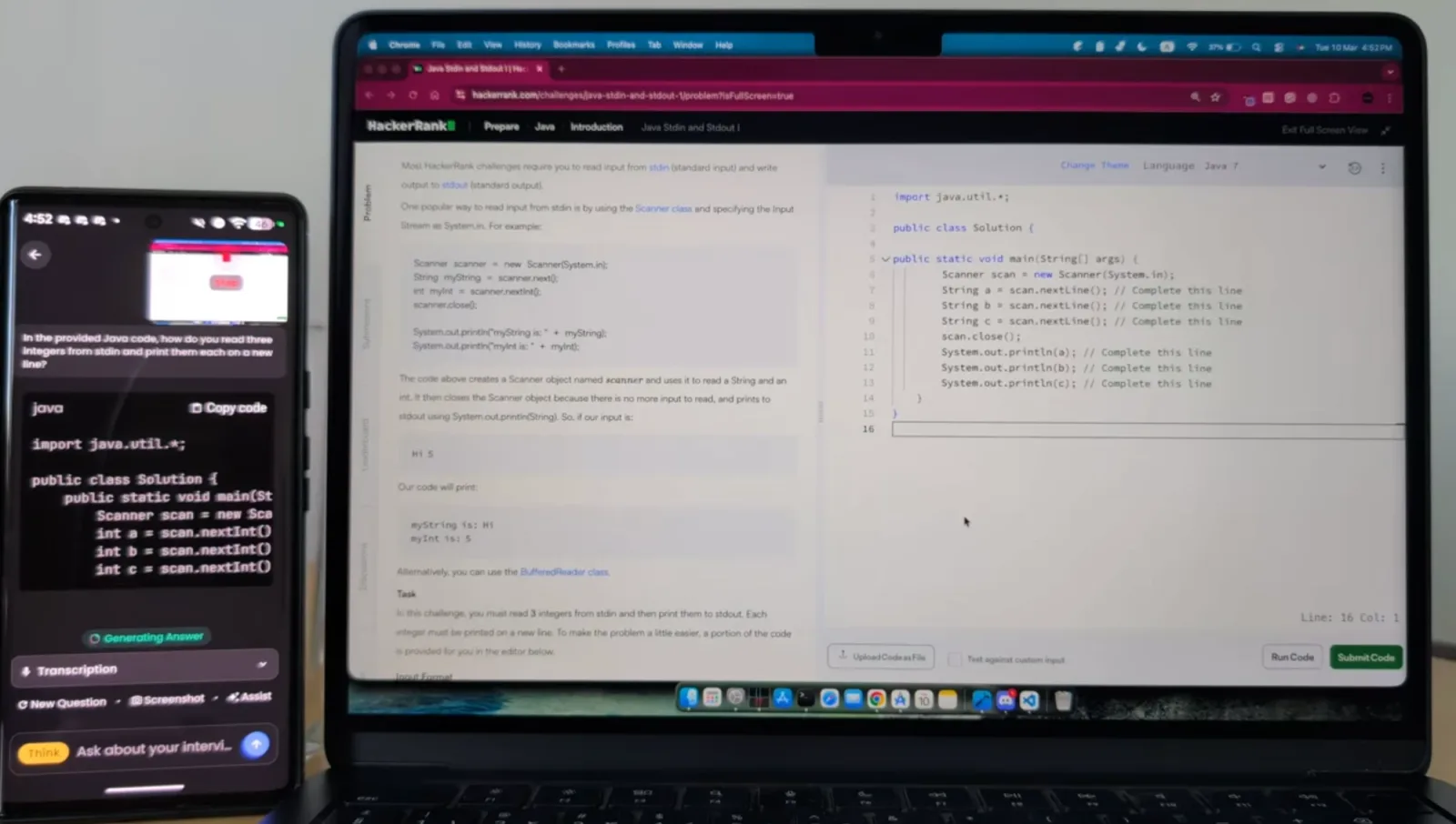
Before the first use, you need to pair the desktop app with your phone once. The step-by-step setup is in How to Use Stealth Mode, and you can watch the whole flow in this Stealth Mode video.
Normal mode tips: shortcuts and mouse pass-through
Both modes stay hidden from screen sharing. The difference is where the app lives. In normal mode it is on the same screen as your interview, so two habits make it look natural.
Memorize the shortcuts. Control the app from the keyboard so you never have to click around in it:
- Cmd+B (Ctrl+B): hide or show the window.
- Cmd+H (Ctrl+H): take a screenshot of the question.
- Cmd+Enter (Ctrl+Enter): get an answer.
- Cmd+arrow keys (Ctrl+arrow keys): move the window, for example right over your code area so your eyes do not wander.
Turn on mouse pass-through. Press Cmd+I on Mac or Ctrl+I on Windows. Now your clicks go straight through InterviewMan to the window behind it. You can click in your code editor or the Zoom window even where the app sits on top, and you never click inside the app by mistake.
The full list is on the Keyboard Shortcuts page. For more ways to look natural on camera, read How InterviewMan Stays Hidden.
Stealth Mode tips: avoid moving your arm on camera
The weak spot of Stealth Mode is not software. It is you, reaching for a phone on the desk while the camera is on. A few ways to fix that:
- Connect a mouse to your phone. A Bluetooth mouse works with most phones. You can scroll and tap without lifting your arm.
- Raise the laptop. Put the laptop on a stand or a few books, and keep your arm and phone below what the camera sees.
- Use a second laptop. Run the InterviewMan web app on another computer next to your interview laptop. You get a big screen and a normal mouse.
- Use a tablet or an iPad. A larger screen is easier to read at a glance, so you look down less.
Quick decision guide
- HR or recruiter call on Zoom, Teams or Meet: normal mode.
- Hiring manager or team interview on a video call: normal mode.
- Phone interview: normal mode.
- Live coding on a shared doc or a simple screen share: normal mode, with mouse pass-through on.
- HackerRank, CodeSignal, Codility or another online assessment: Stealth Mode.
- Proctored exam (a test where software or a person watches you the whole time): Stealth Mode.
Test before the real interview
Whatever mode you choose, do one practice run:
- Set up exactly like on interview day: same laptop, same mode, same screen share.
- Play a YouTube interview question video, or open a free practice problem on HackerRank.
- Press Start and check that the answer appears where you expect it.
- In normal mode, share your screen in a test call and confirm the app does not show up for the other side.
If something does not work, contact support.
Bottom line
Do not make things harder than they need to be. For most interviews, normal mode on one laptop is enough: learn the shortcuts and press Cmd+I so your clicks pass through. Save Stealth Mode for coding tests and exam platforms that actively look for cheating. Get the app from the download page, or keep the short checklist on the help page.
Pick the right mode
Normal mode for Zoom and Teams calls, Stealth Mode for coding tests. InterviewMan gives you both on Mac and Windows.
