

For two years, the most requested InterviewMan feature was simple: "Let me wear my headphones." Until now the app listened only through your microphone, so the interviewer's voice had to come out of a speaker. Headphones, AirPods or a headset meant the app heard nothing but you.
That is fixed. InterviewMan now has Device Audio: it hears the interviewer straight from your computer's sound, so you can wear any headphones you like. This guide shows how to turn it on, starting with Mac, then Windows and the web app, and how to mute your own voice so the app hears only the interviewer.
Last updated: October 22, 2026.
Key takeaways:
- Device Audio lets an AI interview assistant hear the interviewer directly from your computer, not through the air.
- You can wear headphones, AirPods, earbuds or a headset. Noise-cancelling headphones work too.
- It works in the Mac app (macOS 13 or newer), the Windows app, and the web app in Chrome or Edge.
- Turn your microphone off and the app hears only the interviewer, so your voice never gets mixed with theirs.
- Device Audio works in normal mode (called Standard Mode in the app) only. In Stealth Mode the phone listens through its own microphone, so headphones do not work there.
- The short step-by-step version lives on our help page: Use headphones with Device Audio.
Why AI interview assistants used to fail with headphones
A live interview assistant can only answer what it hears. Most tools, InterviewMan included, used to listen through the microphone. That works when the call plays on a speaker. It breaks the moment you put on headphones:
- The interviewer's voice goes into your ears, not into the room.
- The microphone hears only you.
- The app gets your answers but never the question.
The old workaround was two devices: the call on your laptop, on speaker, and the app on your phone next to it. It works, but it is loud, it picks up room noise and echo, and many people simply do not want the interviewer's voice playing out loud. We cover that setup in AI that listens to interview questions.
Put your headphones on
Turn on Device Audio and InterviewMan hears the interviewer straight from your computer. Works on Mac, Windows and Chrome.
Download InterviewManWhat Device Audio changes
Device Audio captures the sound your computer plays: the Zoom, Google Meet or Microsoft Teams call itself. The interviewer's voice goes straight into the app as clean digital audio.
- Headphones are fine. Wired headphones, Bluetooth, AirPods, earbuds or a headset. Whatever you hear, the app hears.
- Cleaner audio, better answers. No fan noise, no echo, no "turn the volume up". The speech-to-text gets the exact words, so the question is detected faster.
- One device is enough. The call and the app can run on the same computer.
- Quiet room. Nobody around you hears the interviewer.
How to use InterviewMan with headphones on Mac
The Mac app needs macOS 13 (Ventura) or newer.
-
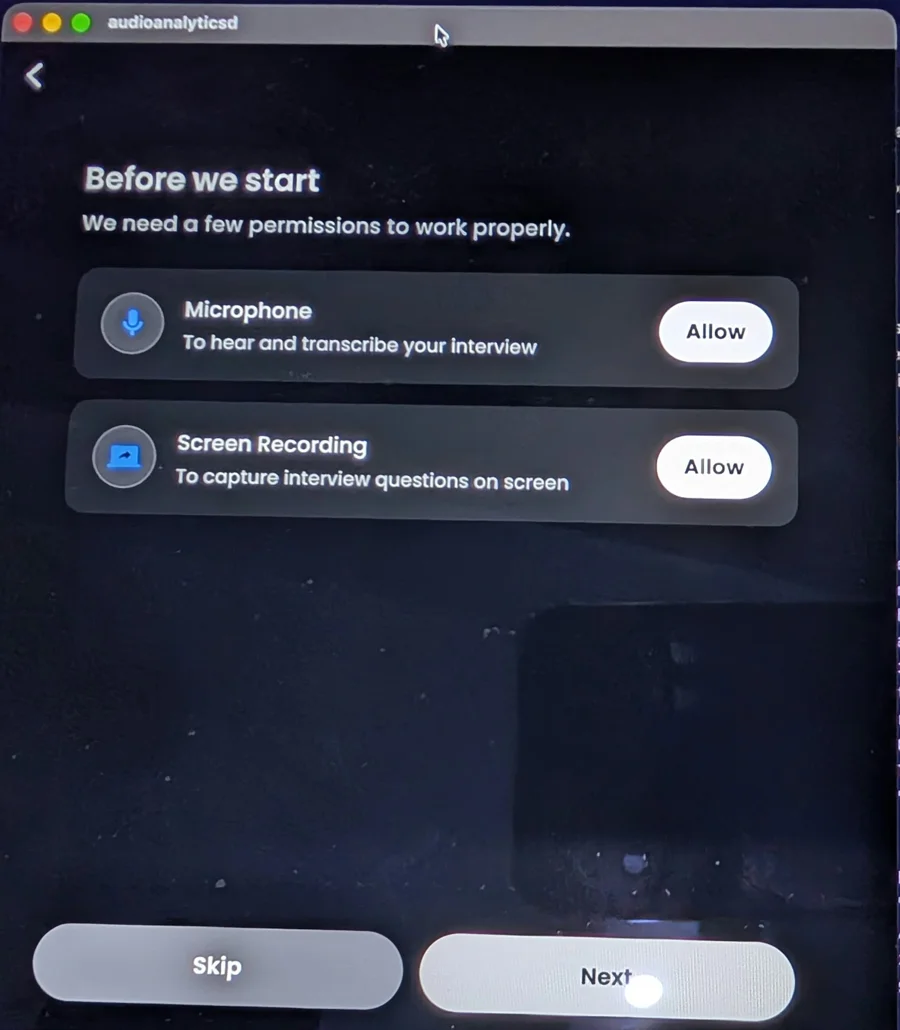
Open InterviewMan and start an interview. On the Before we start screen, click Allow on the Screen Recording card. On Mac, this one permission covers both screenshots and Device Audio.
-
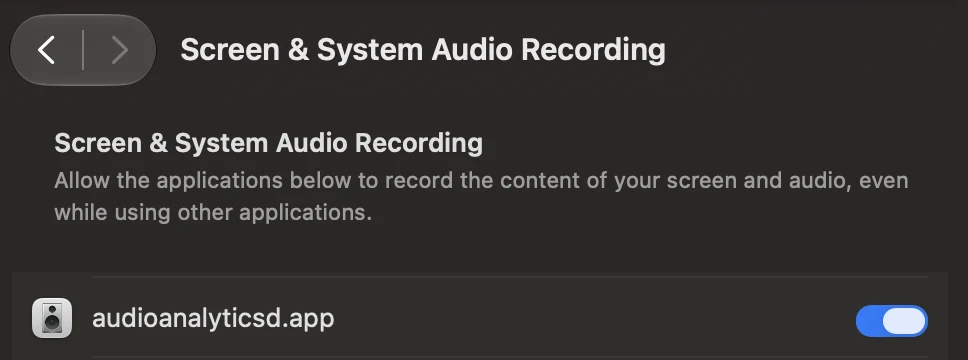
macOS asks for permission. Open System Settings, then Privacy & Security, then Screen & System Audio Recording, and turn on audioanalyticsd.app. This is the name InterviewMan uses on Mac, so look for it instead of "InterviewMan".
-
Quit InterviewMan and open it again. macOS only applies this permission after a restart.
-
Put on your headphones and start the interview.
If Device Audio does not appear or does not start, check your macOS version first. On macOS 12 or older, use the two-device setup instead.
How to use InterviewMan with headphones on Windows
- Open the InterviewMan desktop app and start an interview.
- Click Allow on the Device Audio card.
- Put on your headphones and start. The app hears your computer's sound directly.
How to use the web app with headphones (Chrome or Edge)
In a browser, the only way a web page can hear your computer's sound is through screen sharing. So Device Audio in the web app asks you to share your screen with audio.
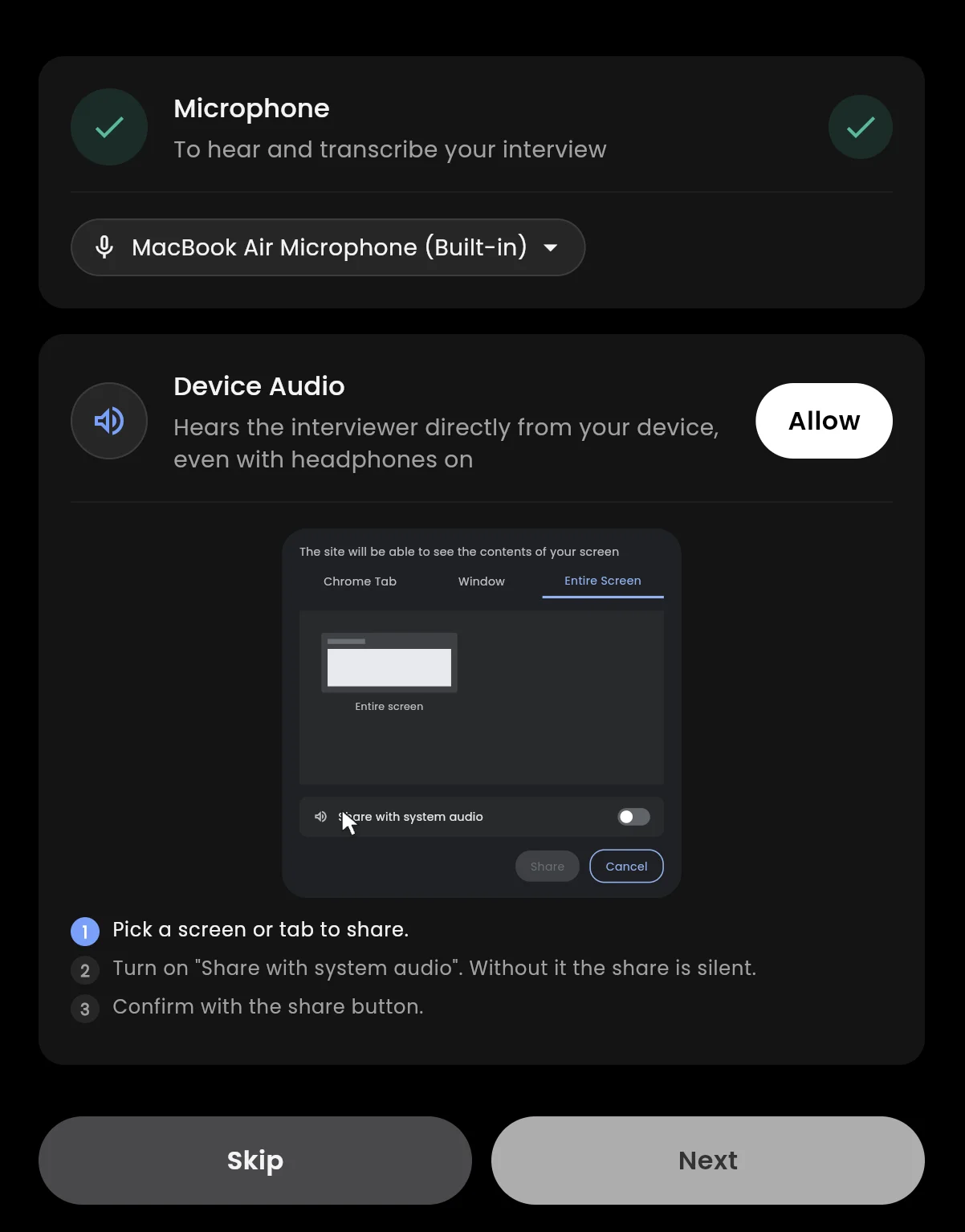
- Click Allow on the Device Audio card.
- In Chrome's share window, pick Entire Screen.
- Turn on Share with system audio. This is the step people miss: without it the share is silent.
- Click Share.
A few things to know:
- Use Chrome or Edge on a computer. Safari and phone browsers do not support it.
- If you click Stop sharing in the browser bar, Device Audio stops. Your microphone keeps working, and you can turn Device Audio on again.
Headphones do not work in Stealth Mode
Device Audio is for normal mode (called Standard Mode in the app), where the app runs on the same computer as the call.
Stealth Mode works differently:
- The app runs on your phone, a tablet or a second computer, not on your interview laptop.
- That device listens to the interviewer through its own microphone.
- It cannot hear the sound inside your headphones, so it hears only you.
So in Stealth Mode, play the call on your laptop's speaker, loud enough for the phone to hear, and keep the phone close to it. If you want to wear headphones, use normal mode.
Choose which microphone the app uses
On Mac, Windows and the web app, you can pick the microphone InterviewMan listens to: your laptop's built-in mic, your headset mic, or an external mic.
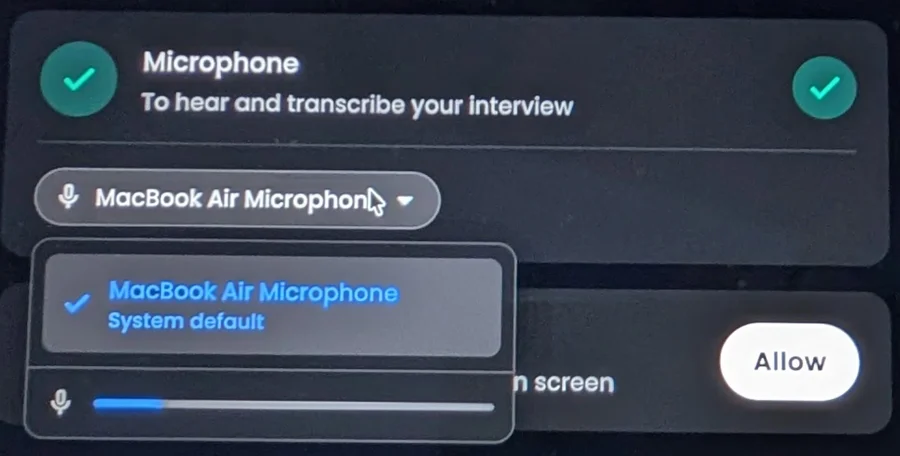
- Under the Microphone card, click the microphone name.
- Pick the microphone you want from the list.
- Speak. If the bar under the list moves, the app hears that microphone.
You can change it before the interview or during it, from Access.
Mute your own voice so the app hears only the interviewer
With Device Audio on, you choose whether the app also hears your microphone. During the interview, open Access and click the microphone button.
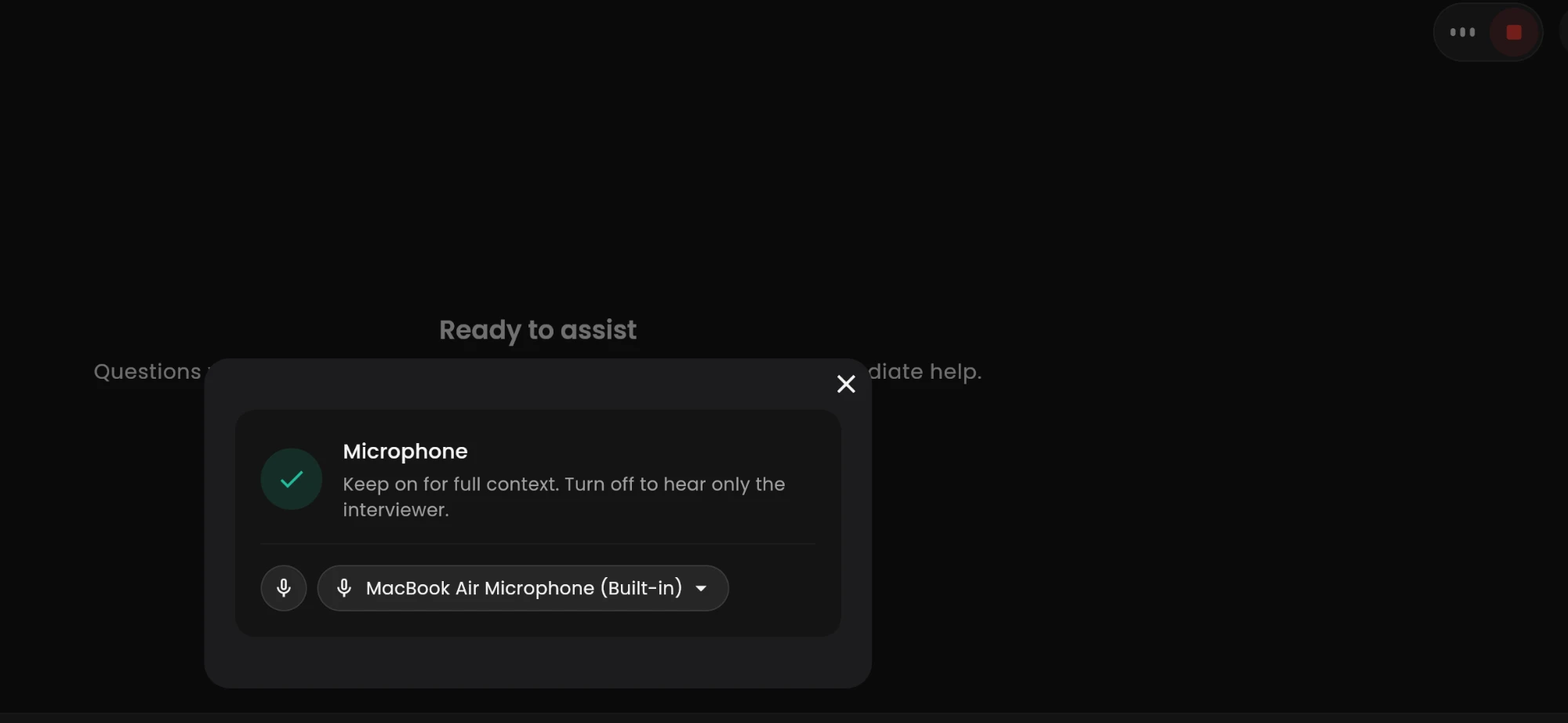
Microphone off: only the interviewer.
- The app hears only the call audio.
- Your voice never gets mixed with the interviewer's voice.
- Your own answer is never mistaken for a new question, so the app stays focused on what the interviewer asked.
- This is the best choice for most interviews.
Microphone on: the full conversation.
- The app hears both of you.
- Useful when you ask clarifying questions and want the answer to take them into account.
You can switch between the two at any time, even while recording.
Test it before the real interview
Two minutes of testing saves a bad surprise:
- Put on your headphones.
- Play a YouTube interview simulator video on your computer.
- Press Start in InterviewMan.
- If the question appears and you get an answer, you are ready.
If nothing shows up, check the permission for your platform above, then see our audio setup guide or contact support.
Something not working? Do a clean reinstall
If Device Audio does not start, the app acts strange, or anything else is broken, the fastest fix is a clean reinstall. It deletes the app and all its cache and settings files, then you install a fresh copy. Your account and subscription stay safe.
- Mac: follow Clean reinstall on Mac. After reinstalling, turn on audioanalyticsd.app in Screen & System Audio Recording again and restart the app.
- Windows: follow Clean reinstall on Windows.
Bottom line
You asked for it for two years, and it is here. Turn on Device Audio, put on your headphones, mute your microphone if you want only the interviewer, and let the app listen to the call directly. Start with the download page, or follow the short checklist on the help page.
Put your headphones on
Turn on Device Audio and InterviewMan hears the interviewer straight from your computer. Works on Mac, Windows and Chrome.
