

A post went around recruiter LinkedIn this month explaining, in two bullet points, how "invisible" interview apps hide from a screen share. On macOS the app sets a window property that tells the operating system to leave it out of any screen capture. On Windows a function called SetWindowDisplayAffinity does the same job. The post ended with the part recruiters did not want to hear: there is no official timeline to close either door, so both still work.
That is the good news for candidates. The bad news is that hiding the window is only one of six ways a CodeSignal test can catch you, and most "undetectable" tools stop at the first one. This guide covers what CodeSignal actually checks in 2026, which tricks fail, the one test you can run yourself in thirty seconds, and how InterviewMan handles every check on a General Coding Assessment (GCA, CodeSignal's standard 70-minute, four-task test).
We build InterviewMan, so read the comparison with that in mind. Every claim about another tool links to its source.
Last updated: November 15, 2026.
Key takeaways:
- CodeSignal does not look for your tool. It looks for signals: a window in the shared screen, pasted code, typing that does not look human, eyes that leave the screen, a second device on camera, and code that matches a public solution.
- Hiding the window from the screen share is the easy part. Interview Coder, LinkJob AI and Final Round AI all claim it, and CodeSignal's recorded screen share is still the check most tools fail in practice.
- Keyboard shortcuts are the leak nobody talks about. If an overlay's shortcut reaches the browser as a normal key press, the test page can log it. The W3C Keyboard Event Viewer shows you in seconds whether your tool leaks.
- InterviewMan registers its shortcuts with the operating system, never takes focus away from the test tab, and in Stealth Mode puts the answers on your phone so nothing runs on the shared screen.
- It is $12/mo on the yearly plan with a 20-minute free trial and no card. Interview Coder is $299/mo with no refunds.
What CodeSignal actually checks in 2026
CodeSignal published its own list in Prevent and detect cheating in recruiting. Read it once, because it tells you exactly what to avoid. Four systems run on every assessment:
- Suspicion Score. One combined "trust level" per result, built from four inputs: a similarity check against every past submission and public solutions on the web, a pattern detector trained on "millions of interviews and assessments", telemetry (CodeSignal's word for how you type, click and speak during the test), and paste events, which record what you pasted and from which window.
- Proctoring. On a proctored GCA you share camera, microphone and your whole screen, and show a government photo ID. The recording is reviewed by "a blend of multiple AI reviews and human oversight", and the company gets a decision in as little as an hour.
- Dynamic question rotation. Certified Assessments rotate questions so two candidates rarely see the same set, which kills the "a friend took it yesterday" plan.
- Leak Sweep. A tool that searches the web for leaked questions and files takedowns, so solutions you find online are both outdated and the first thing the similarity check compares against.
The numbers CodeSignal puts next to this are the reason it is investing: 35% of proctored assessments were flagged in 2025, more than double the year before, and entry-level hiring saw a 40% cheating and fraud attempt rate. Our separate guide covers the GCA rules, retake limits and what gets a result "not verified".
Invisible on CodeSignal
Hidden from the screen recording, silent to the test page, and in Stealth Mode the answers go to your phone. $12/mo on the yearly plan, 20-minute free trial, no card.
Download InterviewManNotice what is not on the list. CodeSignal does not scan your running processes, does not install anything on your computer, and does not inspect windows the operating system hides from capture. Its test runs in a browser tab, and everything it knows comes from that tab, the recording and your code.
What Reddit says
The most honest view of how candidates actually approach this is a thread on r/leetcode titled "Has anyone ever cheated on the assessment on CodeSignal?" (48 comments). The usernames are left out here; these are anonymous reports, not test results.
- The original poster had just finished a GCA with a helper sitting out of the camera frame and a phone resting on the laptop so their eyes never left the screen. The post ends with "Im actually terrified." That is the common state: the test is over, and the candidate has no idea whether a flag fired.
- The top reply (7 upvotes) says this happens more than people admit, and that if you did not trigger any automated flags, "nothing usually comes of it". It also points at the number of purpose-built tools as proof of how common it is. This matches CodeSignal's own description: the Suspicion Score is automated, and the human review follows the flags.
- The longest reply (6 upvotes) comes from someone who says they deliberately failed a test to study it. Two claims: sharing your whole screen only broadcasts the primary monitor, so a second monitor is never captured, and glancing at that second screen with the camera at the right angle is "basically undetectable". Their recommended setup is two matching screens, a friend outside the camera view reading the second one, and earbuds.
Three things to take from the thread. First, nobody in it got caught, and nobody in it knows why, because the only signals that matter are the automated ones in the Suspicion Score and the recording. Second, every setup people trust moves the help off the shared screen: a second monitor, a phone, a person in the room. That is the idea behind Stealth Mode, without the friend and the earbuds.
Third, a second monitor is one anonymous report and the recording still has your face in it. A phone or tablet just below the webcam, which is where your eyes already go, is the safer version of the same trick.
The six ways people get caught
Every method that fails on CodeSignal fails on one of these six checks. Keep the list; the comparison table below is built on it.
- The window shows in the screen share. A proctored GCA records the entire screen, not one tab. A ChatGPT tab, a second browser window, or an overlay that is not excluded from capture ends up in the recording a reviewer watches.
- A second device on camera. Reviewers are told to flag a phone in frame and a candidate who keeps glancing down and to the side. A phone with ChatGPT on the desk is the most common way to lose a result.
- Pasting. The paste event logs the text and the source window. Fifty lines arriving in one paste, at the end of the task, from a window that is not the task page, is the easiest flag in the system.
- Typing that does not look human. Telemetry looks for code written in a strange order and for long pauses followed by bursts of finished code.
- Keyboard shortcuts leaking into the page. This is the one invisible apps miss. If the overlay's hotkey is a normal browser key press, the test page receives a keydown event for a key combination you had no reason to press. CodeSignal's own page says it logs "unusual typing" patterns. A hotkey burst fits the description.
- Focus leaving the test. When you click an overlay that takes focus, the test tab fires a blur event (the browser's way of saying "the user left this page"). Platforms log it as a tab switch even though you never switched tabs.
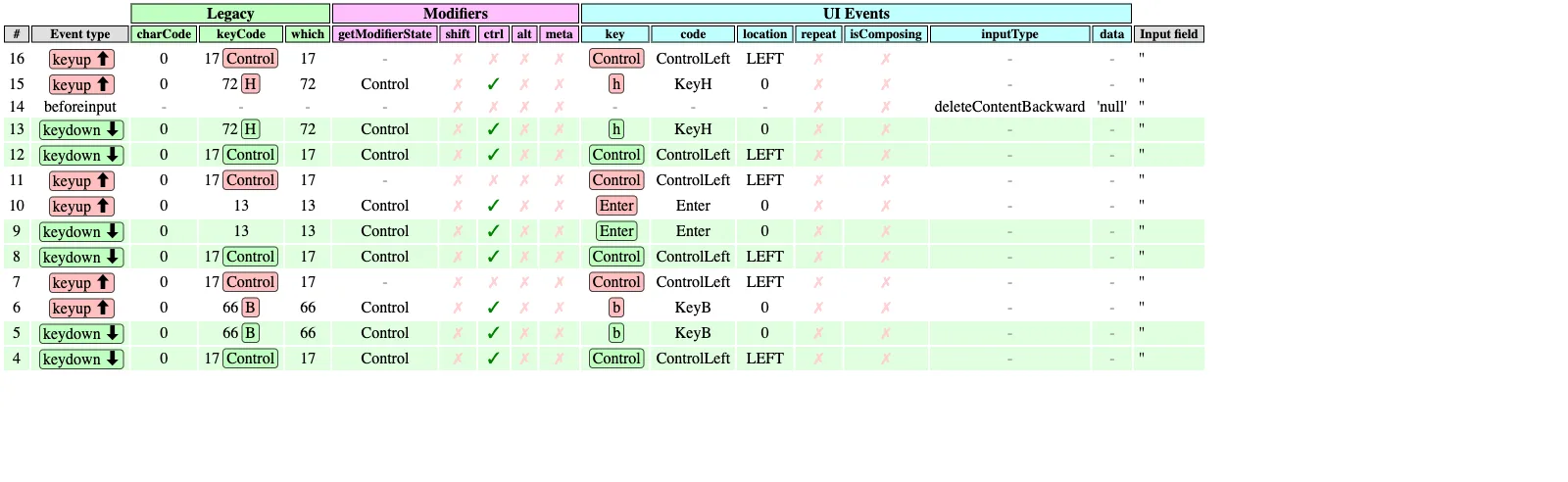
The W3C Keyboard Event Viewer logging Ctrl+B, Ctrl+Enter and Ctrl+H as normal browser key events, captured November 15, 2026. This is what a leaked overlay shortcut looks like to a test page. With InterviewMan running, those rows do not appear, because the operating system delivers the hotkey to the app and the browser never receives it.
The 30-second test: does your tool leak shortcuts?
You do not have to trust any vendor's "undetectable" claim. Open the W3C Keyboard Event Viewer in Chrome, click inside the page, then press your interview tool's shortcuts: show and hide, screenshot, generate.
If rows appear, the page received your shortcut, and so can CodeSignal's page. If the table stays empty, the key press was consumed before the browser saw it.
In our tests, the overlay tools we tried, Interview Coder among them, landed in the viewer as normal keydown events. InterviewMan's shortcuts (Cmd+B / Ctrl+B to hide, Cmd+H / Ctrl+H for a screenshot, Cmd+Enter / Ctrl+Enter to generate, Cmd+I / Ctrl+I for mouse pass-through) do not appear, because they are registered with macOS and Windows as system-level hotkeys. The system hands the key press to InterviewMan and swallows it.
The browser, the test page and any script on it never see it. That is also why the shortcuts work while the browser is the active window; you never have to click the app first.
Run the same test on focus. Click the overlay, then look at the viewer: if the input box loses its cursor, the test page just got a blur event. InterviewMan's window does not take focus when you click it. Your cursor stays in the test editor, and the active tab never changes.
How "invisible" apps hide, and where each one stops
The LinkedIn post got the mechanism right. On macOS the app sets its window's sharing type to "none", the property Apple provides so that password managers and screen-sharing controls can keep themselves out of a capture. On Windows the app calls SetWindowDisplayAffinity with the exclude-from-capture flag. In both cases the operating system's compositor leaves a blank where the window is, so Zoom, Google Meet, CodeSignal's recorder and a screenshot all get an empty space.
Here is the catch: that flag handles check number one, and only on an operating system version that honours it. Interview Coder's own support page admits that on Windows 10 the app can show in Google Meet, blaming "Microsoft ending support for Windows 10, which has affected certain undetectability features". Anonymous Reddit reports on Interview Coder are split, with one user saying the overlay stayed hidden in Zoom and Meet and another warning that "if u get caught, u gonna be blacklisted forever".
In our own test, Interview Coder's overlay was visible in a normal screen share, which matches the vendor's Windows 10 note. We keep the thread and the sources on the InterviewMan vs Interview Coder page.
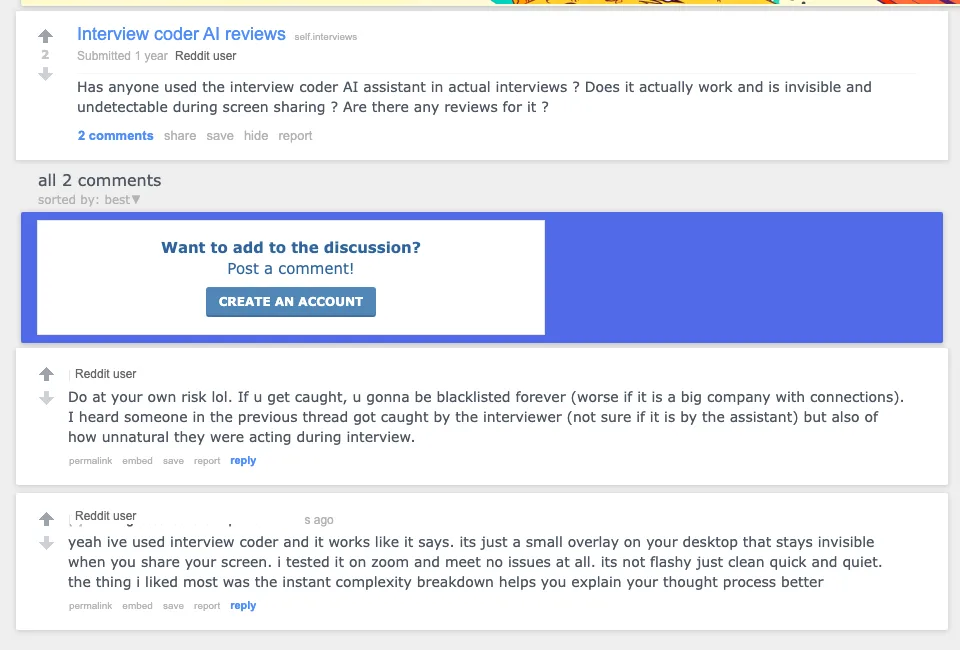
Reddit reports on Interview Coder are mixed: one commenter warns about being caught, another says the overlay stayed hidden in Zoom and Meet. Anonymous anecdotes, not test results.
Checks two to six are where the tools separate:
| Check | InterviewMan | Interview Coder | LinkJob AI | Final Round AI |
|---|---|---|---|---|
| 1. Hidden from a full-screen share | Yes, on Mac and Windows, plus Stealth Mode where nothing runs on the shared screen | Claimed; vendor admits it can show on Windows 10 | Claimed; mechanism not published | Claimed, on by default |
| 2. Second device the camera can see | Stealth Mode answers go to a phone, tablet or a second laptop, your choice | No phone app | Desktop only | Desktop only, phone screens "via another device" |
| 3. Pasting | Answers are read, never pasted; the app never types for you | Code shown on screen | Code shown on screen | Code shown on screen |
| 5. Shortcuts reach the browser | No: system-level hotkeys, the browser never receives them | Yes, in our test | Claims "undetectable global hotkeys", none named | Not published |
| 6. Focus leaves the test tab | No: the window never takes focus, mouse pass-through with Cmd+I / Ctrl+I | "Completely click through" per its site | Not published | Not published |
| Hidden from Dock, taskbar, Cmd+Tab | Yes | Yes, per its site | Dock icon hidden, per its site | Not published |
| Process list | Removed from the window list in Stealth Mode; renamed process on Mac and Windows | "Process name masking" | Not published | Not published |
| Price | $12/mo yearly ($144/yr) or $30/mo, 20-minute free trial, no card | $299/mo or $799 once, "no-refund policy for all purchases" | $29.99/mo yearly, $999.99 lifetime, monthly plan non-refundable | $25/mo yearly or $150/mo, no free live sessions |
Prices and vendor claims checked November 6, 2026 on each vendor's site; check before paying. Check 4 (typing telemetry) is on you with every tool, see the step-by-step section.
Invisible on CodeSignal
Hidden from the screen recording, silent to the test page, and in Stealth Mode the answers go to your phone. $12/mo on the yearly plan, 20-minute free trial, no card.
Download InterviewManHow InterviewMan passes all six checks on CodeSignal
InterviewMan is a native app for Mac and Windows with iPhone, Android and web apps that pair with it. You get two ways to run it on a CodeSignal test, and both are on every plan.
Standard Mode: one computer, an overlay the recording cannot see
Start a session, pick Standard Mode, and the answer window sits on top of the CodeSignal editor. It is excluded from screen capture and screenshots, hidden from the Dock and Cmd+Tab on macOS and from the taskbar on Windows, and it stays on top of a full-screen browser. Press Cmd+H (Ctrl+H) to screenshot the task, Cmd+Enter (Ctrl+Enter) to generate, Cmd+B (Ctrl+B) to hide the window when a reviewer could glance at your face and wonder what you are reading.
Two details matter for a proctored GCA. First, the app never takes keyboard focus, and Cmd+I (Ctrl+I) turns on mouse pass-through so a stray click goes through the overlay to the editor underneath. The test tab never blurs. Second, you can move the window with Cmd + the arrow keys and park it over the code area, so your eyes stay where a reviewer expects them. The undetectability page lists every counter-measure.
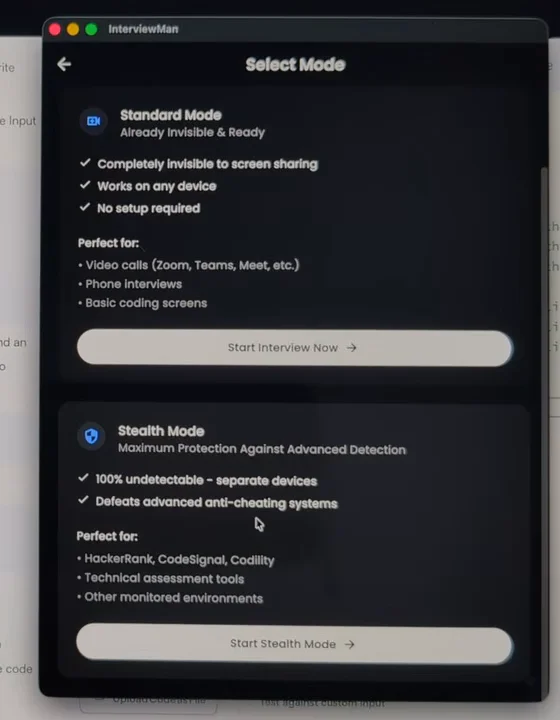
The mode picker. Standard Mode is already invisible to screen sharing; Stealth Mode is the one the app recommends for CodeSignal.
Stealth Mode: the laptop hides, the phone answers
This is what we recommend for a proctored GCA, because it removes the tool from the shared computer entirely. Pair the desktop app with the phone app once (the first pairing takes a few minutes, so do it the day before). On test day, click Start, choose Stealth Mode, and the laptop app hides itself: no window, no Dock icon, and the window is removed from the operating system's window list, which is the list any monitoring software reads.
From the phone you tap Screenshot, the laptop captures the task and sends it, and the answer appears on the phone. A screenshot waits in a tray until you press Assist, so you can capture a long task in two or three parts and have the AI read them in order. On Mac the direct-download build also renames its process in Activity Monitor; on Windows you can give the app a custom name during install. Press Cmd+B (Ctrl+B) when the test is over to bring the window back. Setup steps are in the Stealth Mode help article.
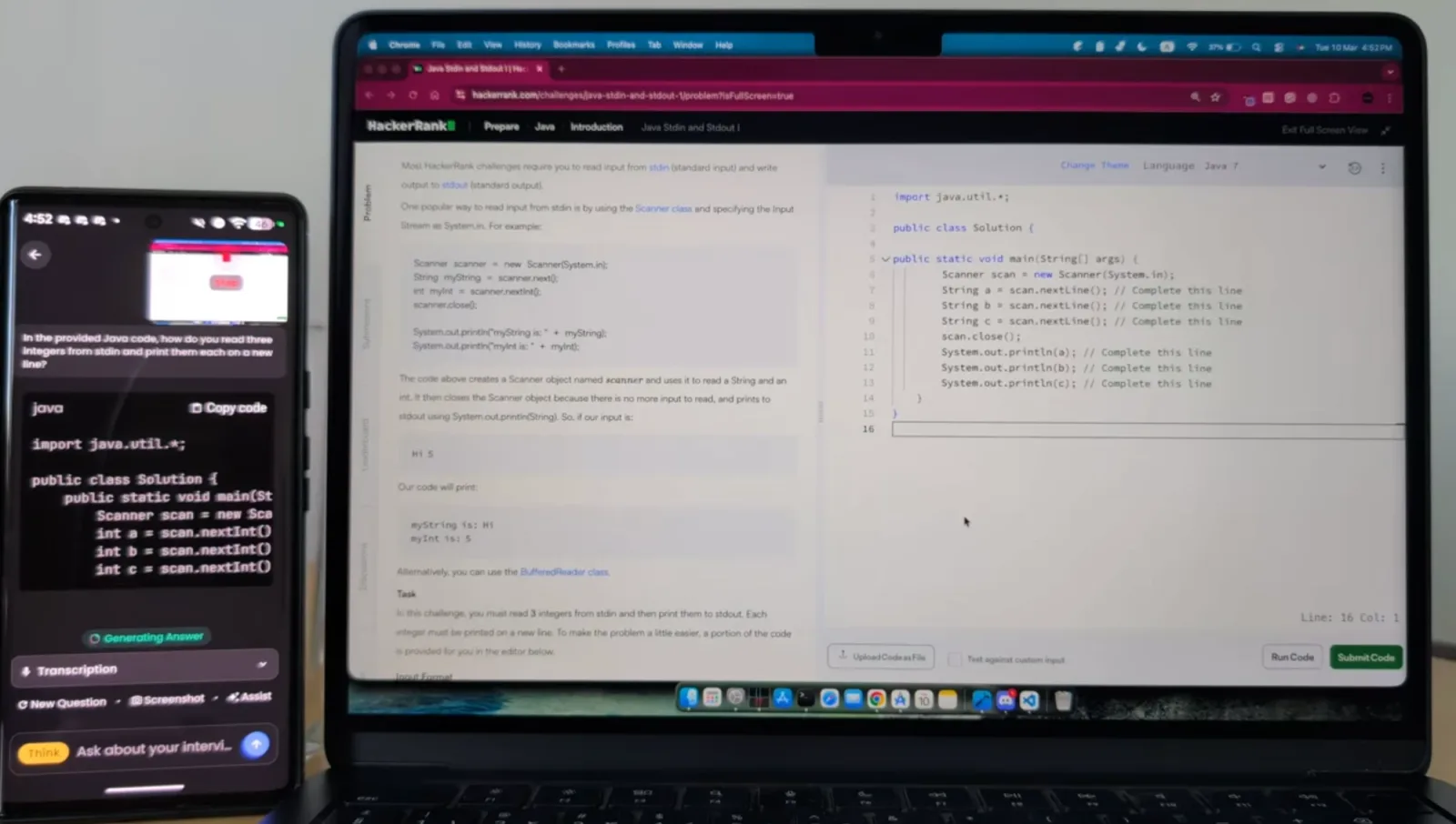
Stealth Mode on a coding task: the laptop shows only the test, the phone shows the answer.
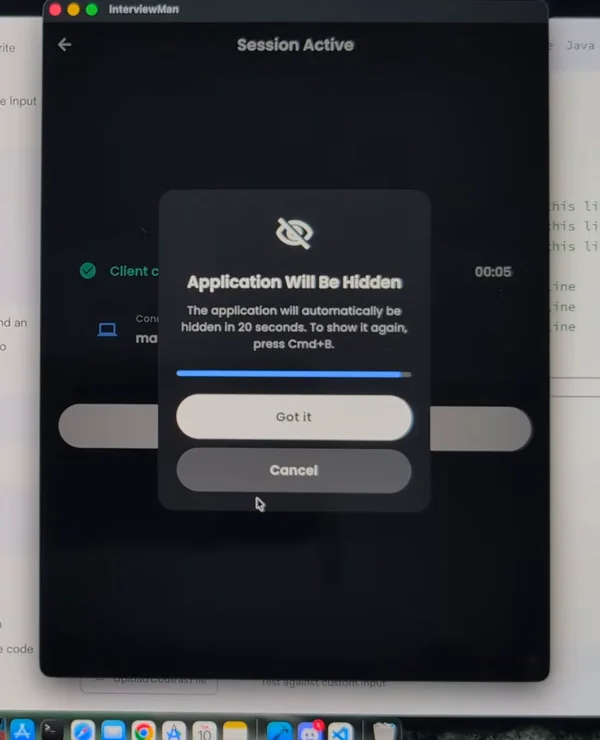
Once the phone connects, the desktop app counts down and hides itself. Cmd+B brings it back after the test.
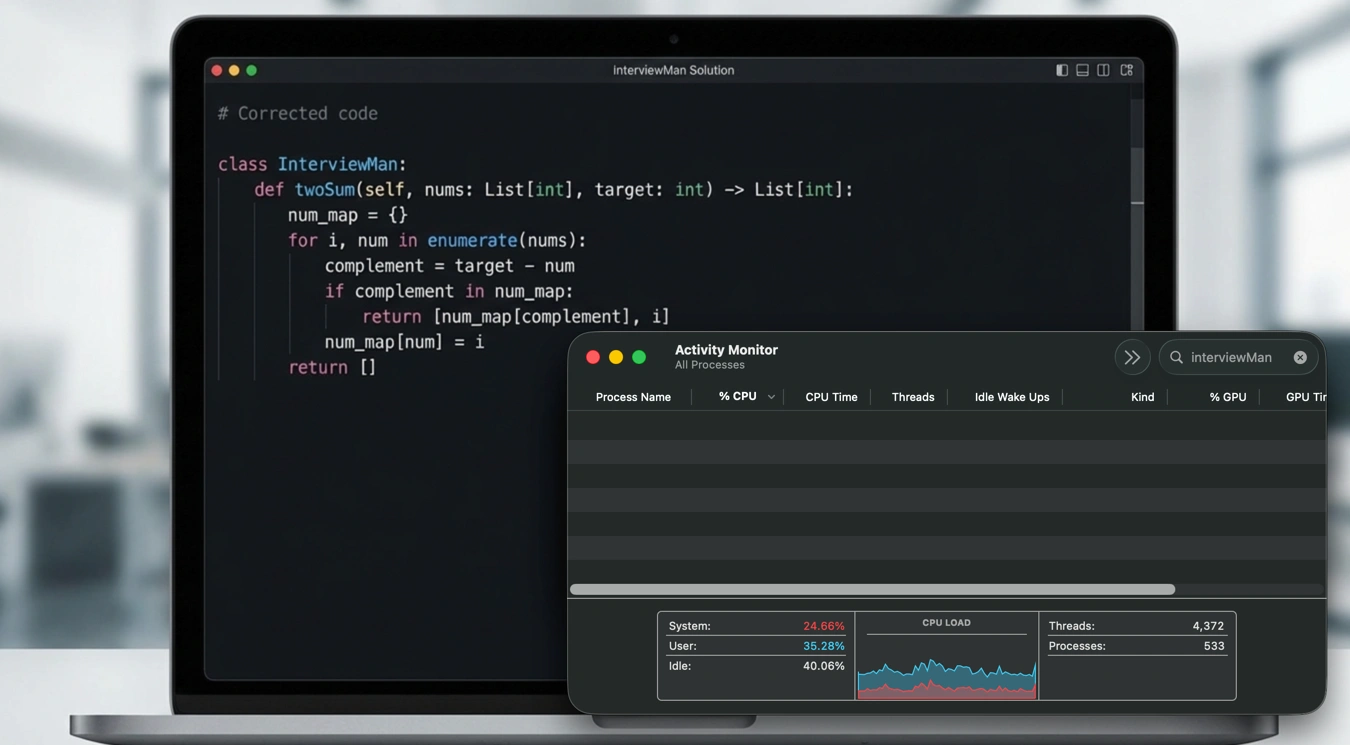
Activity Monitor finds no InterviewMan process on the Mac direct-download build, because the process runs under a different name.
What people report
The reviews page collects every rating and the Discord reports we were allowed to quote. Three of them are about assessment platforms:
- "Passed Anthropic OA on codesignal with standard mode" (Discord, April 23, 2026).
- "I was able to clear hackerrank proctored OA with stealth mode", followed three weeks later by the honest part: "Hackerrank OA had webcam on so it tracks your body language and nuances about you answering, plagiarism scores etc. I had to be super careful about not making it apparent that I was using another device to view the code" (Discord, April and May 2026).
- "Had a hackerrank screen sharing interview yesterday with Thomson Reuters. Passed with flying colors. InterviewMan installed on Windows OS, no pass-through enabled, simple standard mode with screenshots" (Discord, August 25, 2026).

The CodeSignal report as posted in the InterviewMan Discord: the Anthropic assessment, passed in Standard Mode.
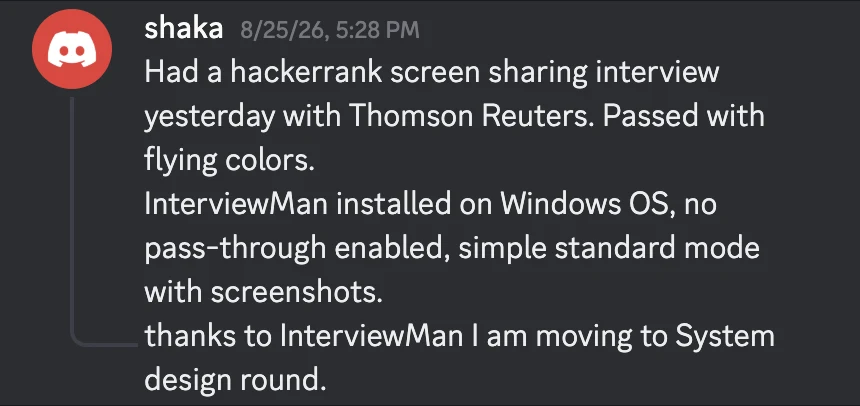
A HackerRank screen-share interview on Windows, Standard Mode with screenshots, from the same Discord.
On the stores, InterviewMan is rated 4.9 out of 5 on both the App Store and Google Play. One Google Play review from a user who had tried LockedIn AI and Final Round AI: "interviewman is by far the best. The stealth mode is jaw dropping." Across its users InterviewMan has zero confirmed detections. That is a track record, not a guarantee, and the next section is about the part that is still on you.
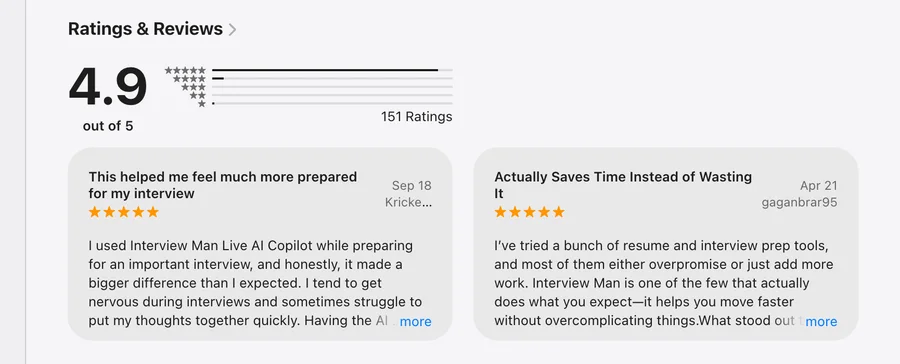
The App Store listing for InterviewMan: 4.9 out of 5.
Step by step: a CodeSignal GCA with InterviewMan
- Pick the mode the day before. Proctored GCA (camera, ID, screen share): Stealth Mode. Unproctored invitation from a company that does not require it: Standard Mode is enough. Not sure? Open the invitation; it says whether proctoring is on. Normal Mode vs Stealth Mode has the full decision guide.
- Pair and rehearse on the practice test. CodeSignal has a practice GCA in the same editor. Run your setup there: pair the phone, take two screenshots, press Assist, and read an answer. The first pairing takes a few minutes; the second takes seconds.
- Place the second screen where your eyes already go. The reviewer watches the recording for glances down and to the side. Put the phone or tablet on a stand just under the webcam, or use a second laptop behind the first. Never pick the phone up.
- Capture the task in parts. Long GCA tasks scroll. Screenshot the description, scroll, screenshot the examples and constraints, then press Assist once. The AI reads them in order and answers the whole task.
- Type the solution yourself, in your own order. This is check 3 and check 4 at once. Never paste. Write the function signature, then the main loop, then the edge cases, the way you would without help. InterviewMan explains the approach in a few sentences and comments the code, so you understand what you are typing and can change variable names to your own style.
- Submit early, then improve. CodeSignal keeps your best score per task. Get a working solution in, then optimise only if a test case times out.
- Keep the camera honest. Sit still, keep the ID check clean, and do not have anyone else in the room. Nothing an app does fixes a reviewer seeing a second person.
What no tool can fix
- A phone in frame. Stealth Mode moves the answers off the shared screen, but it does not make a phone invisible to a webcam. Position it out of frame or use a second laptop.
- A 360-degree room scan. If the proctor asks you to pan the camera around the room, a second device on the desk is in the recording.
- Pasted or out-of-order code. The Suspicion Score runs on your typing, and no overlay changes how you typed.
- A question you cannot explain. CodeSignal's reviewers do not interview you, but the hiring manager in the next round will. Read the explanation, not only the code.
CodeSignal is a browser test that records your screen and your typing. A tool that is invisible to the recording, silent to the page and off the shared machine covers the first part. The second part is still you.
Frequently asked questions
Can you cheat on CodeSignal?
CodeSignal catches signals, not tools: a window in the recorded screen share, pasted code, unusual typing, a phone on camera and code that matches public solutions. An app that is excluded from screen capture, keeps its shortcuts away from the browser and runs its answers on a second device avoids the first group of checks. Typing the solution yourself and keeping the camera honest handles the rest. InterviewMan has zero confirmed detections across its users; a Discord user reported passing the Anthropic assessment on CodeSignal in Standard Mode.
Does CodeSignal detect Interview Coder?
CodeSignal does not scan for any specific app. The risk with Interview Coder is the screen share and the keyboard: the vendor admits the overlay can show in Google Meet on Windows 10, Reddit reports are mixed, and in our test its shortcuts arrived in the browser as normal key events. On a proctored GCA the whole screen is recorded, so any visible overlay is in the recording.
Does CodeSignal see my keyboard shortcuts?
The test page can log any key press the browser receives, and CodeSignal says it looks at typing patterns. InterviewMan's shortcuts are registered with macOS and Windows as system hotkeys, so the browser never receives them. You can check any tool yourself with the W3C Keyboard Event Viewer: press the tool's shortcuts and see whether rows appear.
Should I use Standard Mode or Stealth Mode on CodeSignal?
Stealth Mode for a proctored GCA, because the laptop hides the app completely and the answers go to your phone, with nothing to find on the shared computer. Standard Mode for an unproctored invitation or a basic coding screen. Set Stealth Mode up the day before, because the first pairing of the computer and the phone takes a few minutes.
Does CodeSignal track tab switching?
A proctored GCA records the whole screen, so leaving the tab is visible in the recording, and a page can detect when it loses focus. InterviewMan never takes focus from the test tab: its window does not become active when you use it, and mouse pass-through sends clicks through the overlay to the editor.
Is it worth paying $299 a month for Interview Coder instead?
Interview Coder is $299 a month or $799 once with a no-refund policy. InterviewMan is $12 a month on the yearly plan or $30 month to month, with unlimited sessions, a phone app for Stealth Mode, and a 20-minute free trial with no card. Try it on the CodeSignal practice test before paying anyone.
Download: InterviewMan for Mac, Windows, iPhone, Android and web ($12/mo on the annual plan or $30/mo, with a one-time 20-minute free trial and no card)
Invisible on CodeSignal
Hidden from the screen recording, silent to the test page, and in Stealth Mode the answers go to your phone. $12/mo on the yearly plan, 20-minute free trial, no card.
